Learn how to securely log into the Furniture Wizard Payment portal and add a new payment method to your account.
Log into the Payment Portal
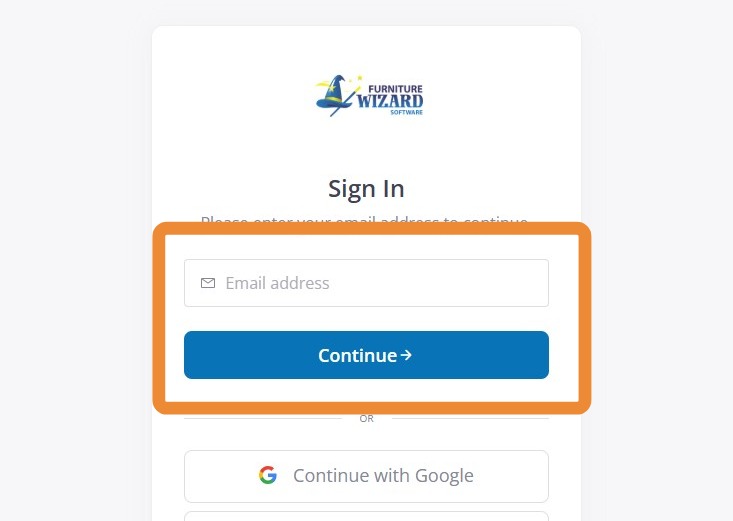
1. Navigate to https://pay.furniturewizard.com
2. Enter your email address and click "Continue." If you have an account already in our system, you will get an email with a verification code. If you do not have an account with the payment system, we will get an alert to add you to the account. Once you are added, you get an email to log in.
Tip: Tip! Verification emails come from noreply@notifications.alternativepayments.io. You may need to check your spam folder.
Add Your Bank Account
3. Once you are successfully logged in, click "Payment Details" on the left-hand side of the page.
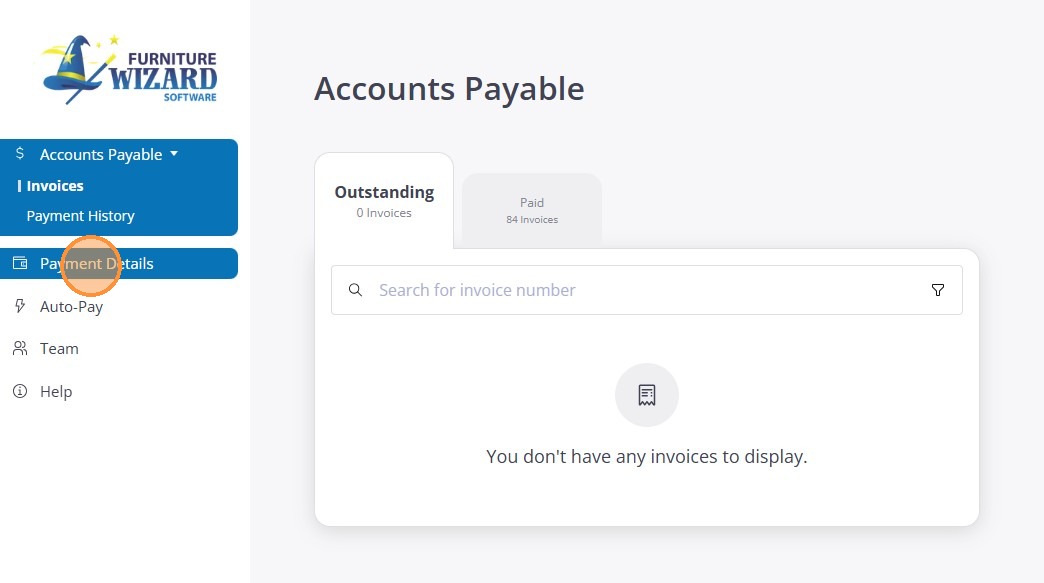
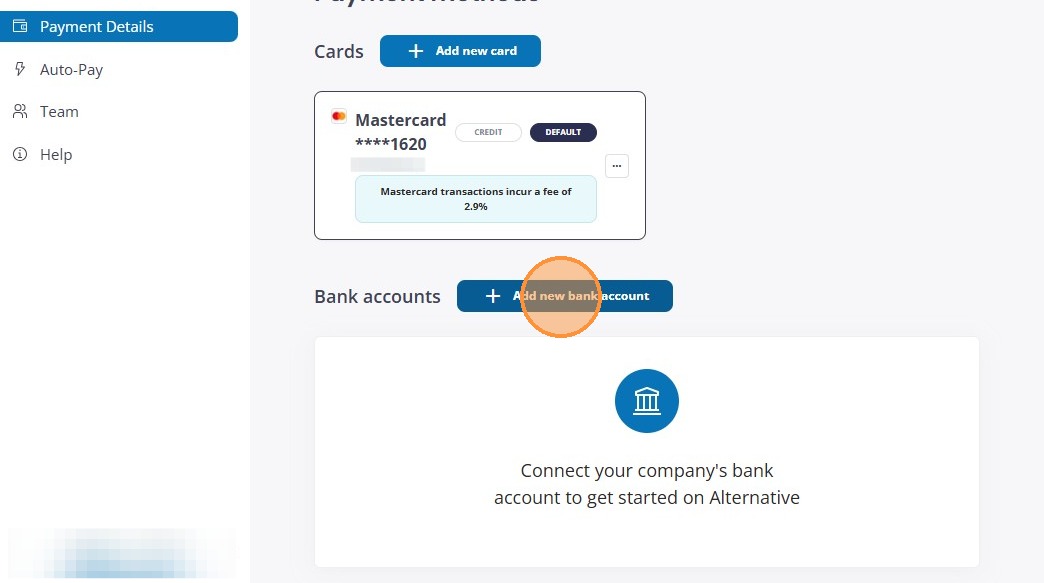
4. On this page, you will see the payment methods currently on your account. You will be charged a 3% fee for using a credit card (where allowed by law), so please click "Add new bank account" to continue with a fee- free payment method.
5. Enter your bank account details and then Click "Add bank account."
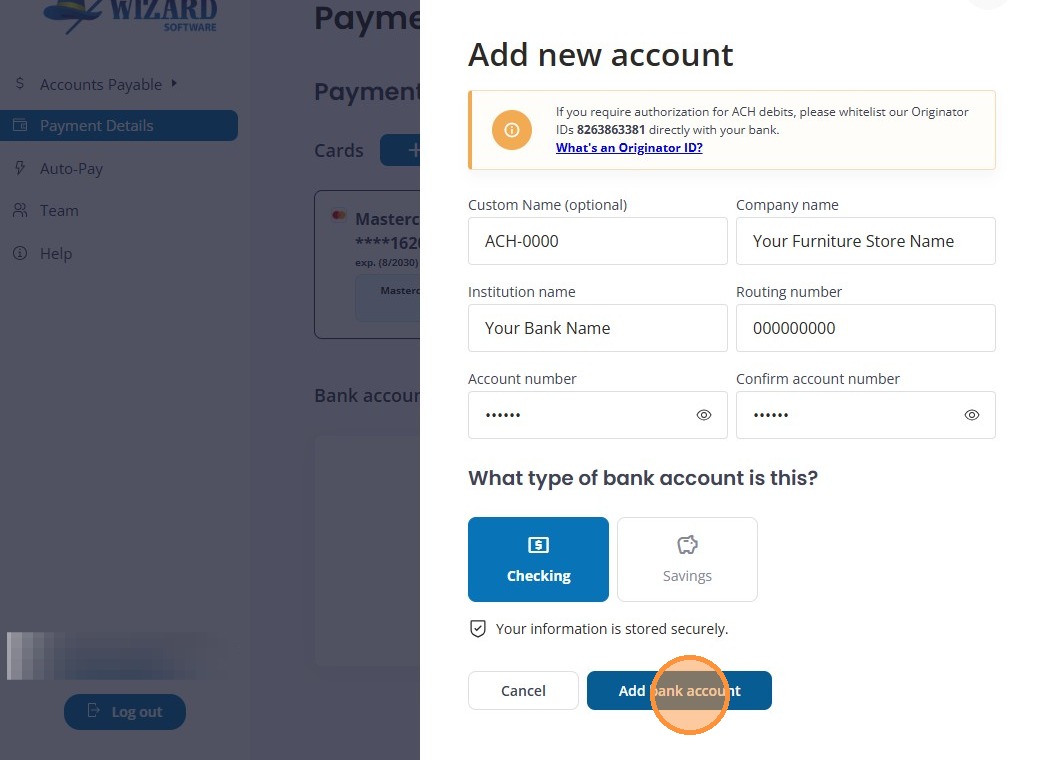
Alert: Alert! If you have enhanced security on your bank account, you will need to contact your bank and ask that we be whitelisted. You will need to provide them with our ACH Originator ID of 8263863381.
Set Your Bank Account as the Default Payment Method
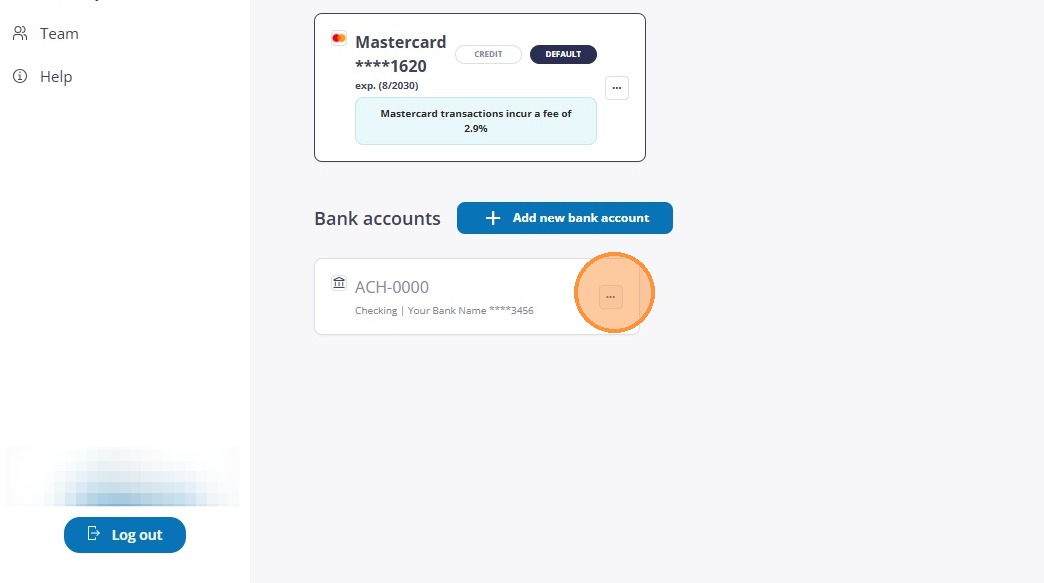
6. Click the 3 dots on the bank account you just added.
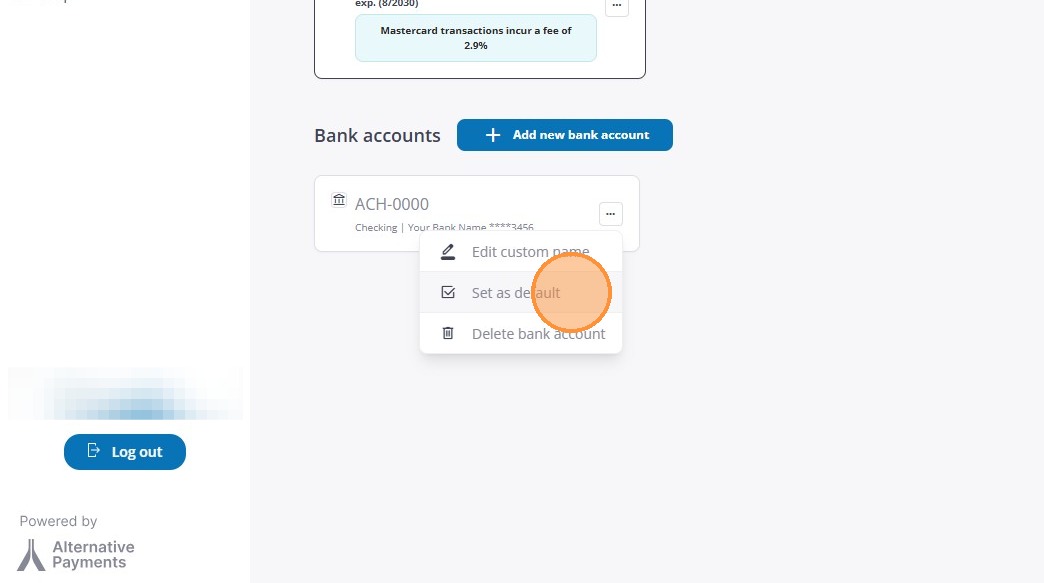
7. Choose "Set as default."
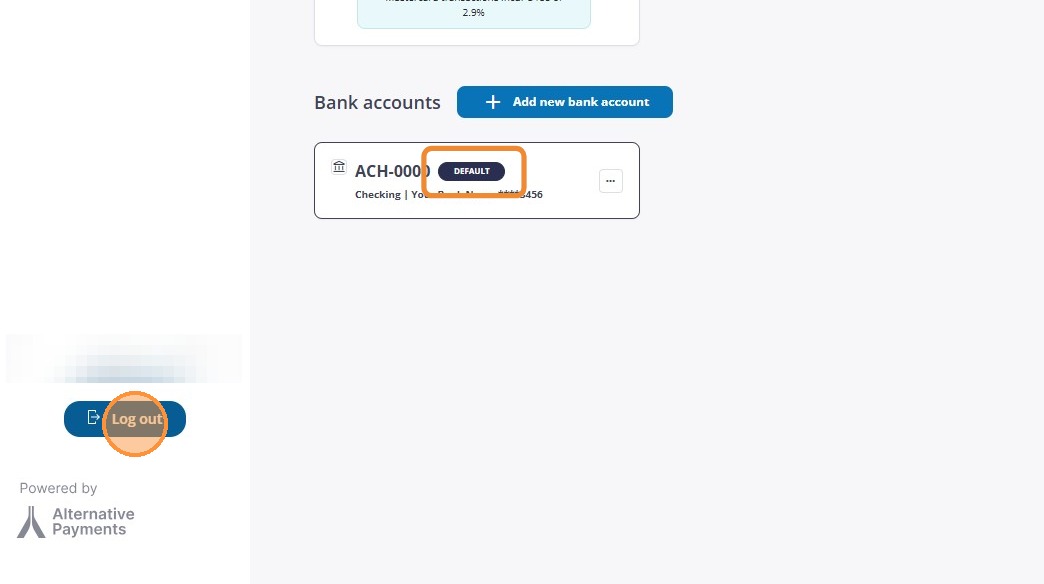
8. You are now done. Click "Log out"
Tip: Tip! If you need any assistance, you can always email billing@furniturewizard.com and we would be happy to help!