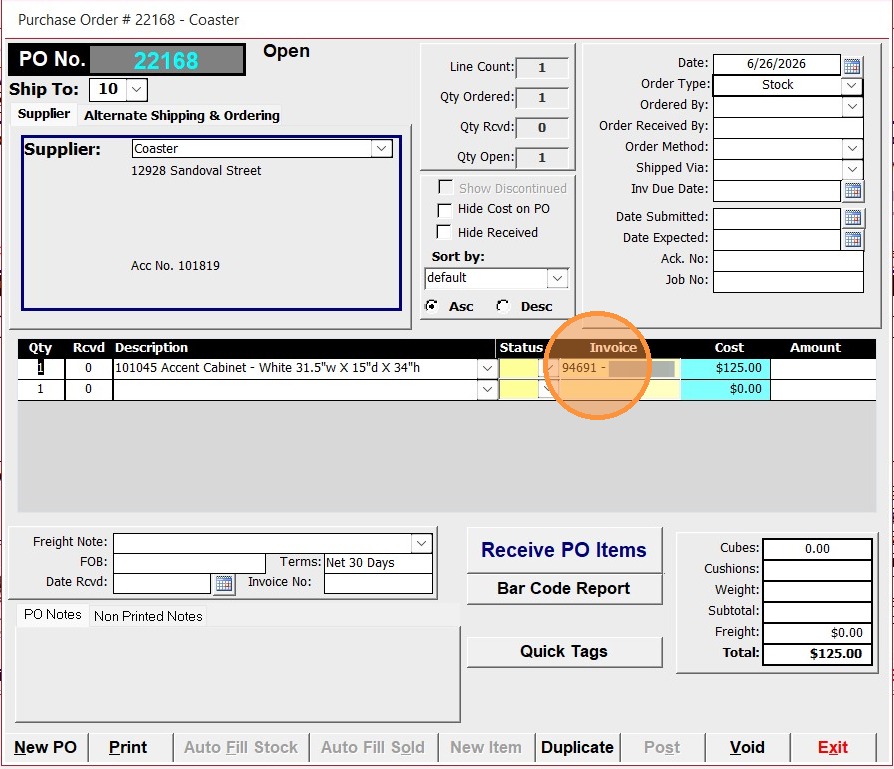
This guide provides step-by-step instructions for Processing Inventory items to a specific existing Purchase Order to create a Special Order. Follow these steps to ensure accurate stock management and streamlined processing within Furniture Wizard.
Inventory Processing Initiation
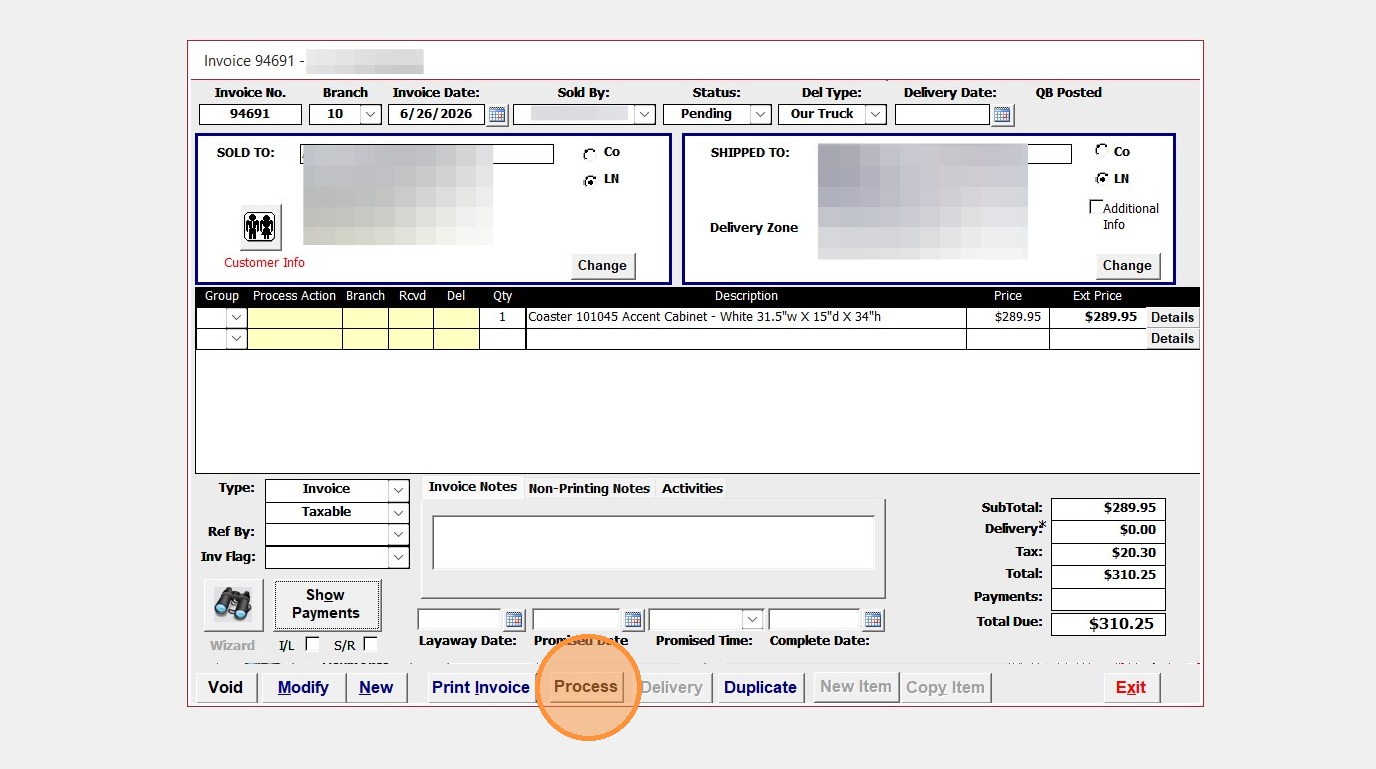
1. Click "Process" Invoice
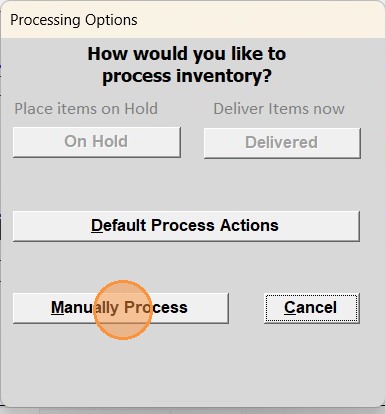
2. Select "Manually Process" from the options.
Purchase Order Selection
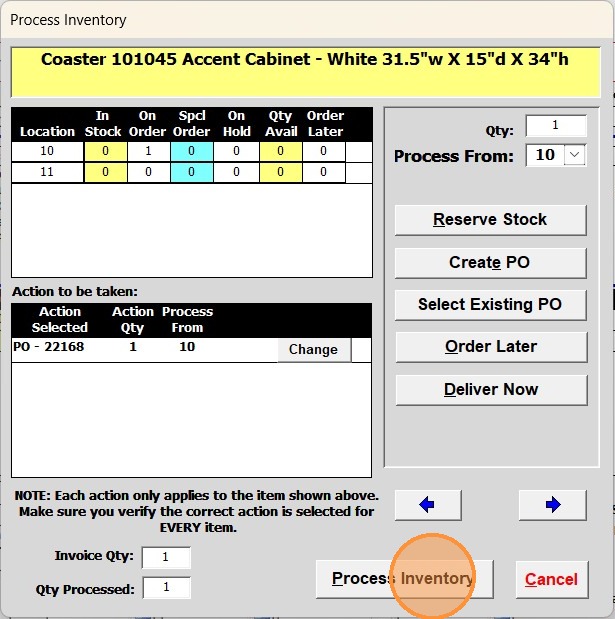
3. Click "Change" in the Action to be taken section.
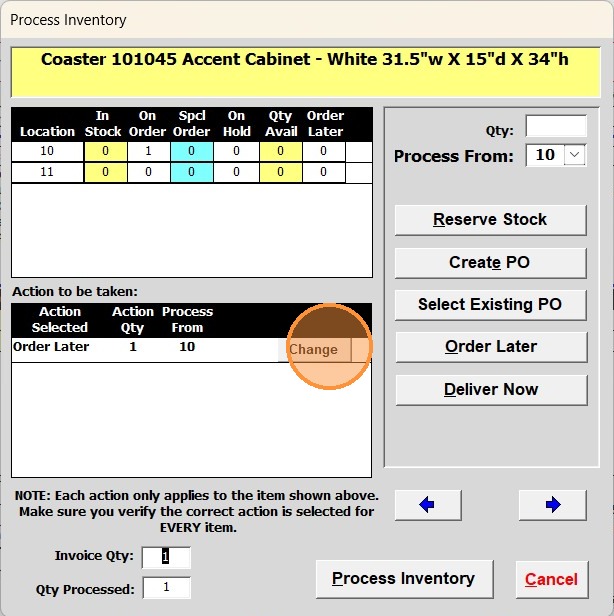
4. Check that the Branch and Quantity information are correct
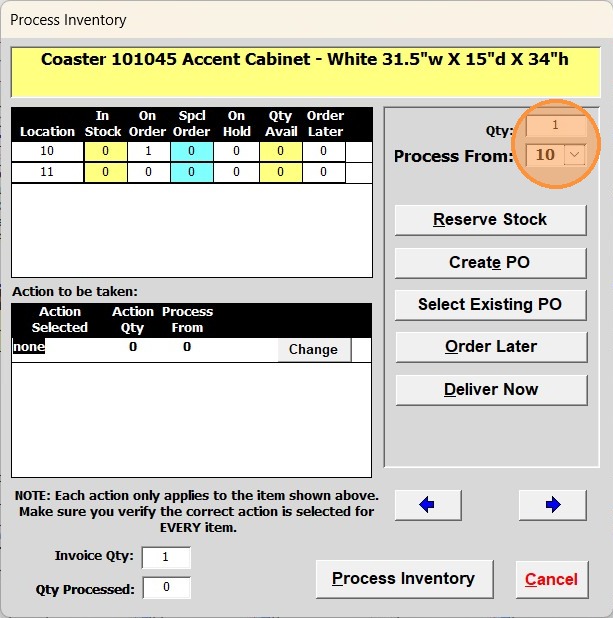
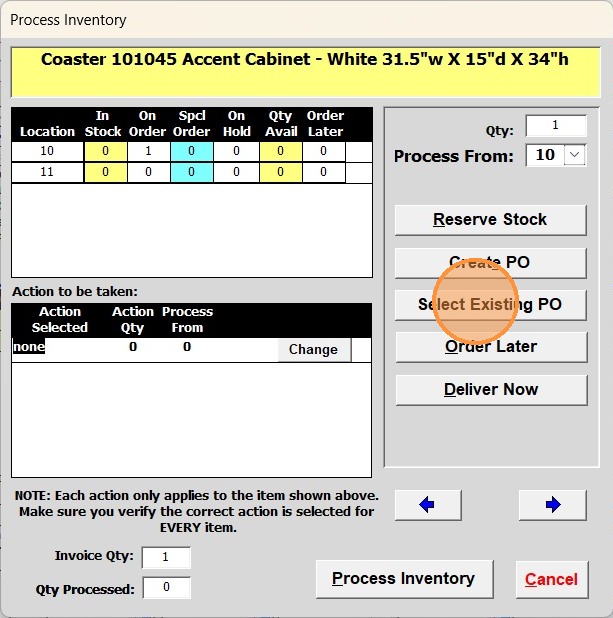
5. Click "Select Existing PO" to link to an existing stock Purchase Order.
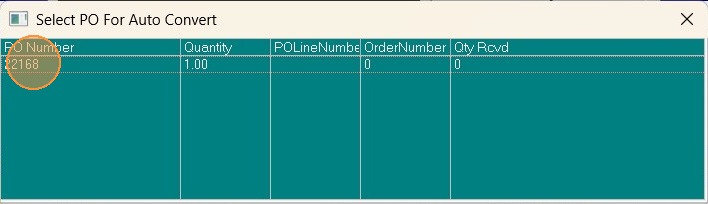
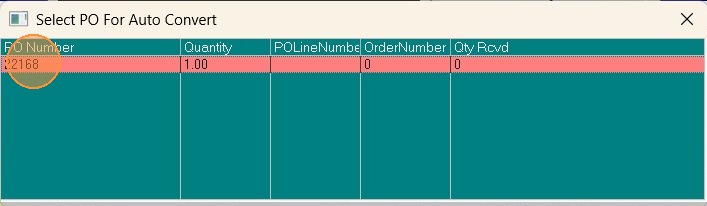
6. Double-click the desired Purchase Order from the list to select it.
Finalize Inventory Action
7. Click "Process Inventory" to confirm the action.
8. Click the process action field for the inventory item to open the Purchase Order.
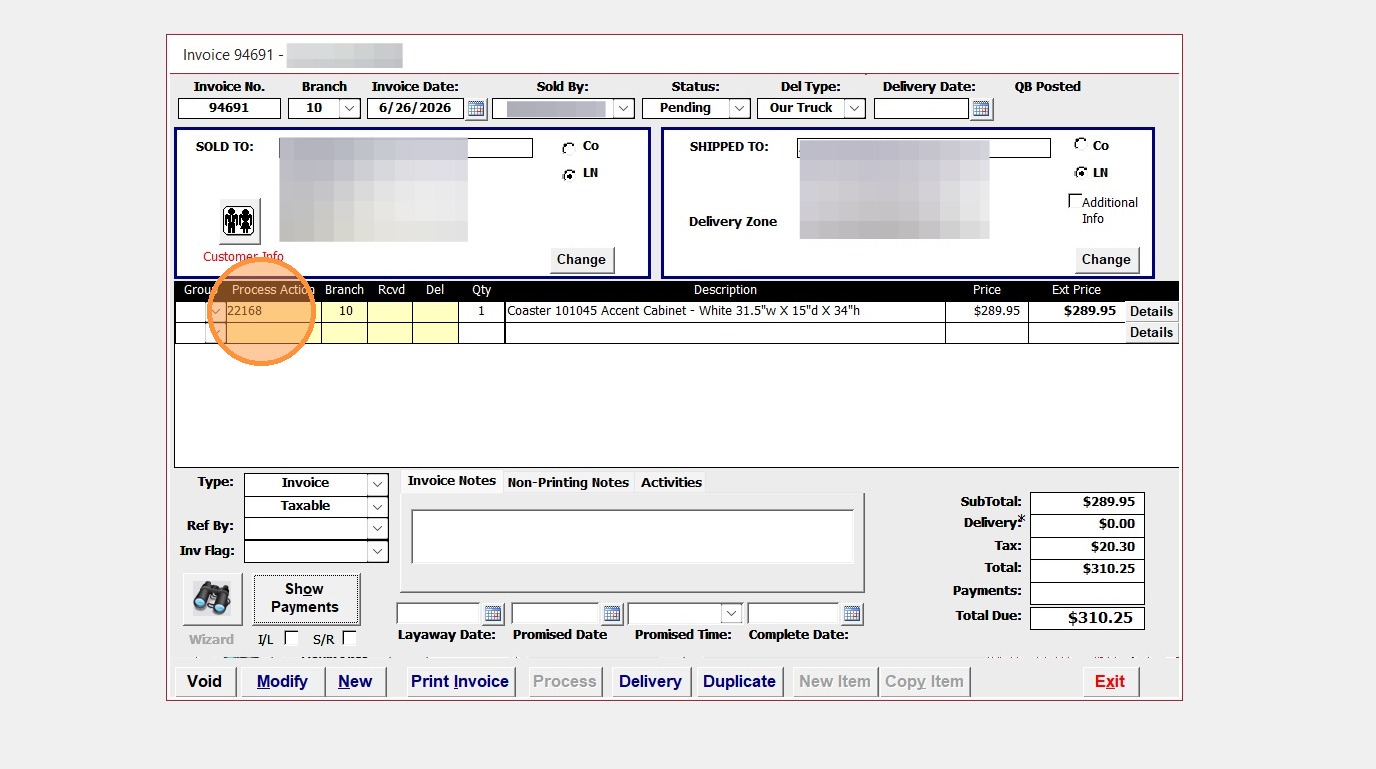
9. The existing Stock Purchase Order is now converted to a Special Order and is linked to the Invoice