Follow this guide to navigate the use of Super Search to create a list of items that have an assigned picture or no assigned picture. These steps help you locate the necessary fields and input the required file details to finalize your export process.
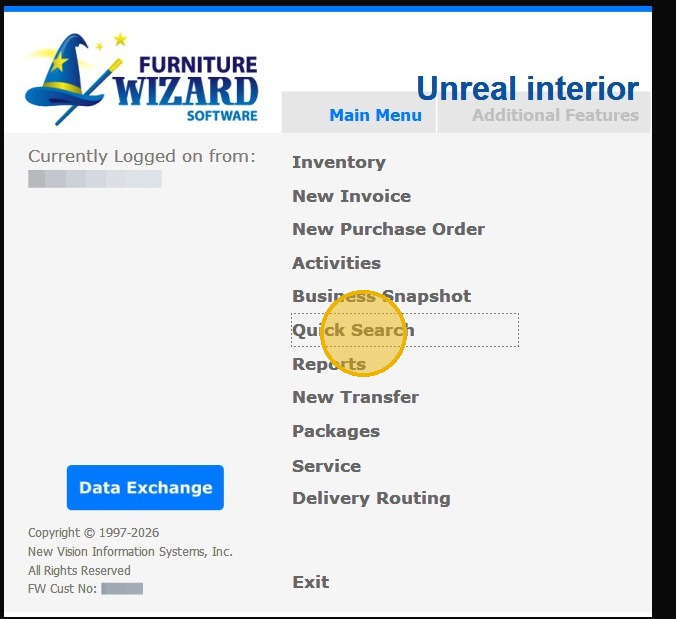
1. Go to Quick Search.
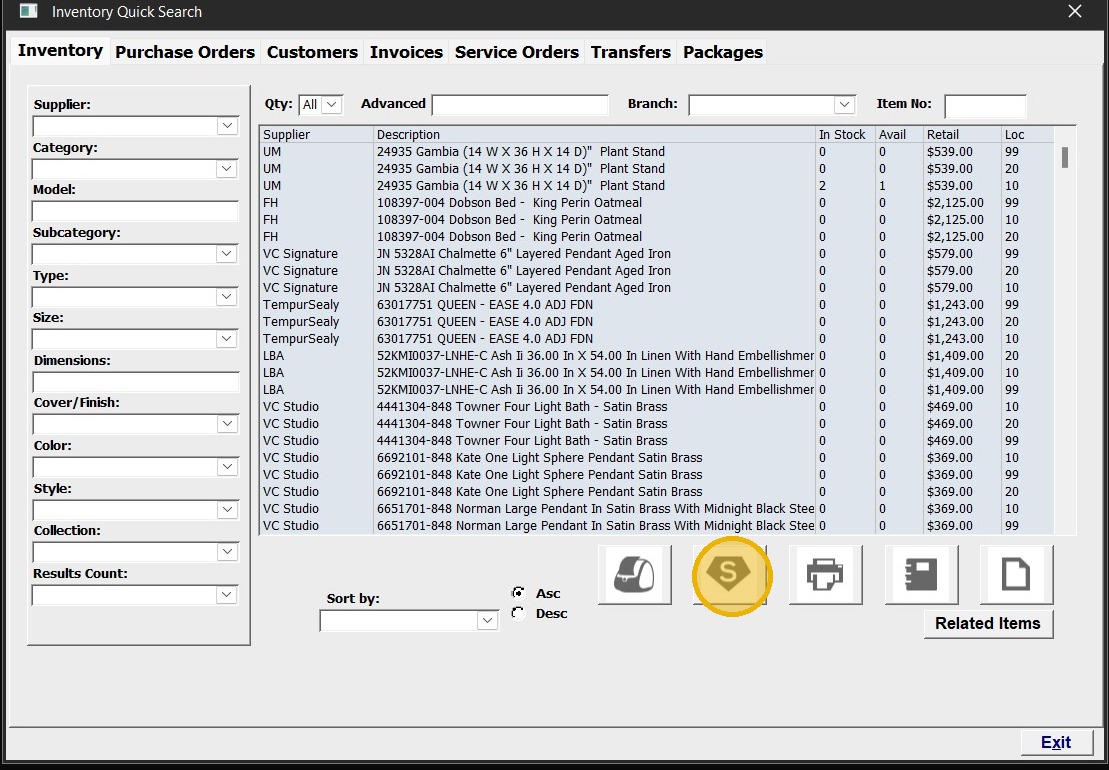
2. Confirm you are on the "Inventory tab", Click "Super Search."
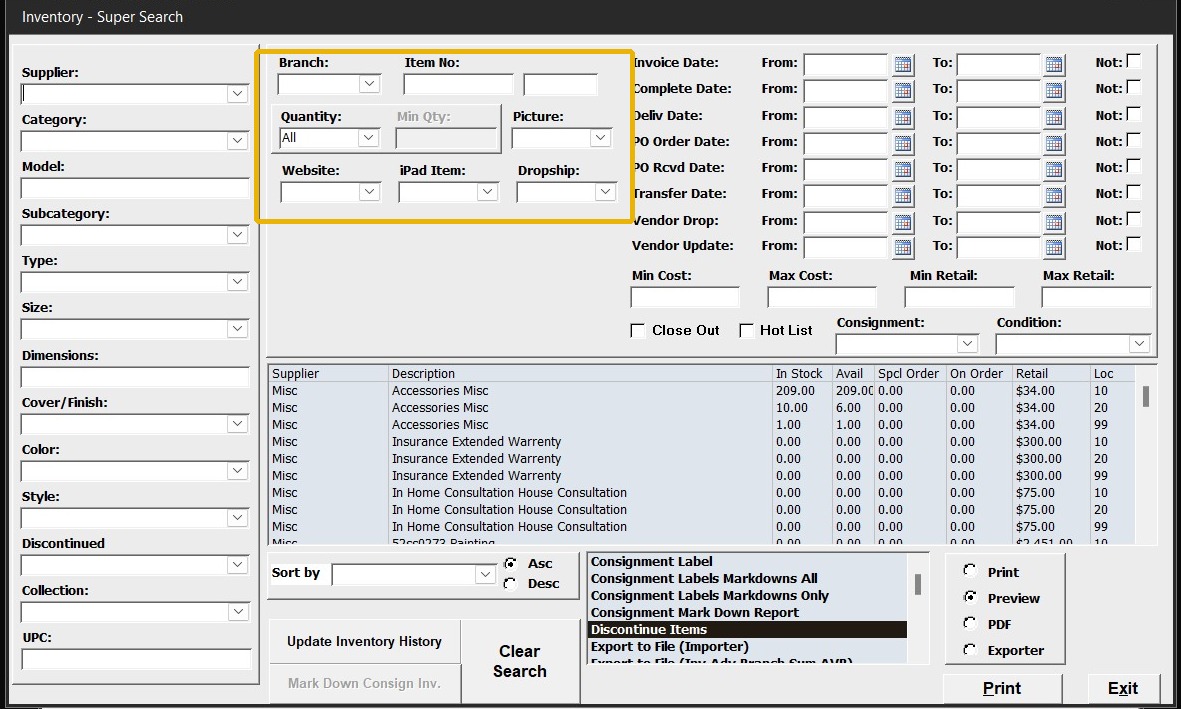
3. Here, you will choose your options to narrow your search
Required field's:
Branch
Picture: ALL, Has picture, No Picture
Depending on the desired outcome, fill in the information Quantity & Min QTY
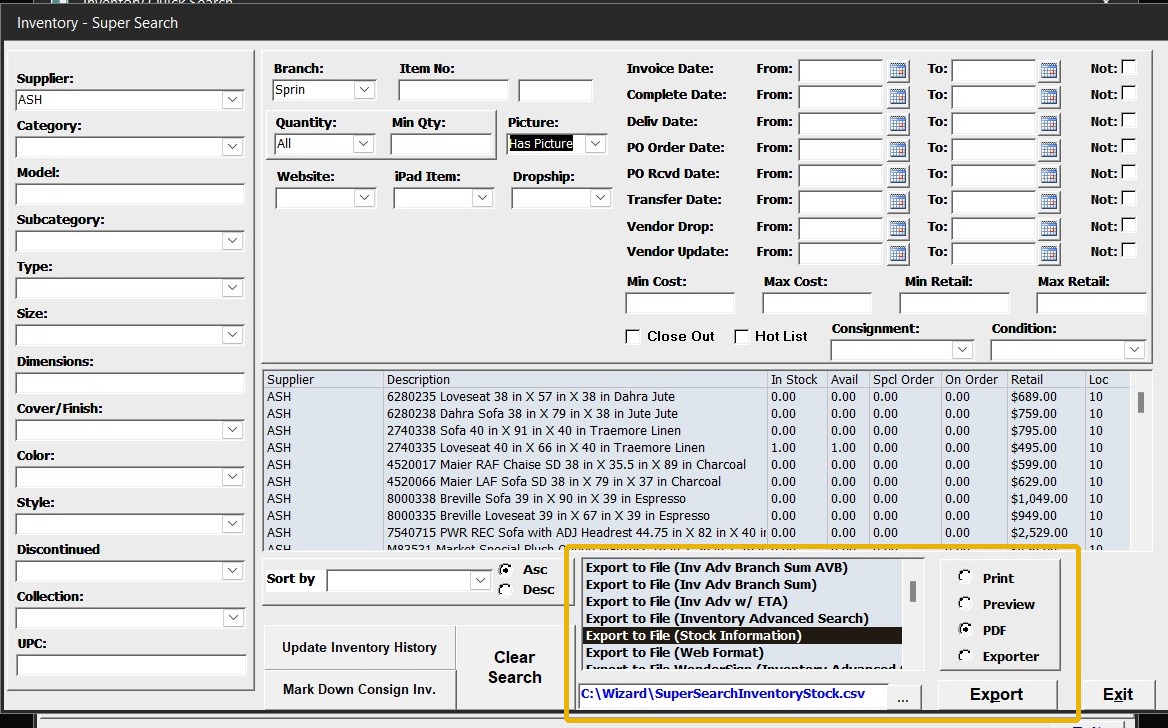
4. You now pick the type of Export you want to use so you can see the inventory information that has an assigned picture or not. (The name of the file will be shown in blue beside the export button)
For peer-to-peer users, the exported .csv file will be located in your Wizard Directory C:\wizard\exported.csv.
For cloud users, the exported .csv file will be located in your Wiz ++ folder. This can be accessed by opening the Windows app icon