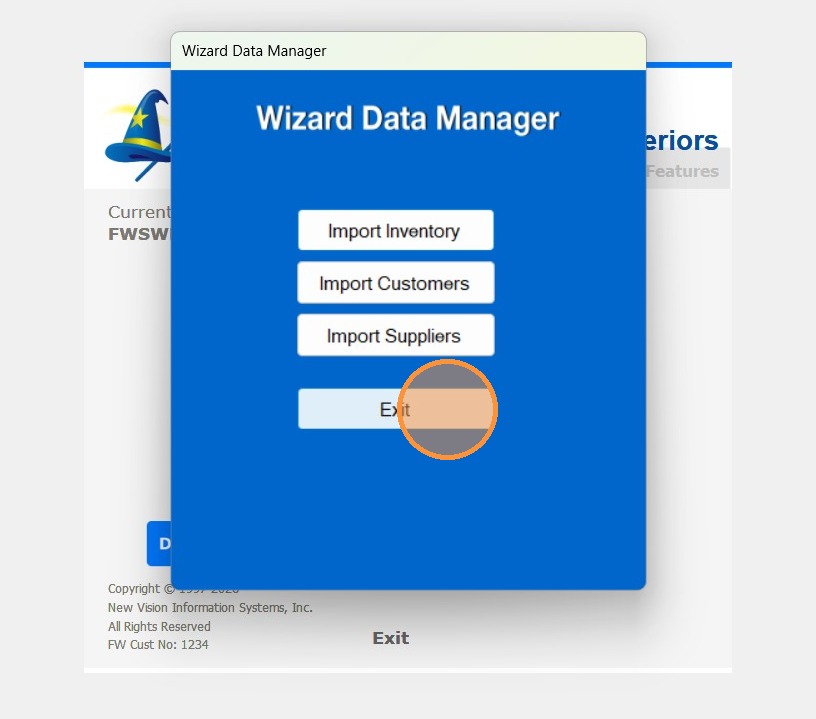
Use this three-step process to update Non Stocking item pricing while retaining current pricing for stock items.
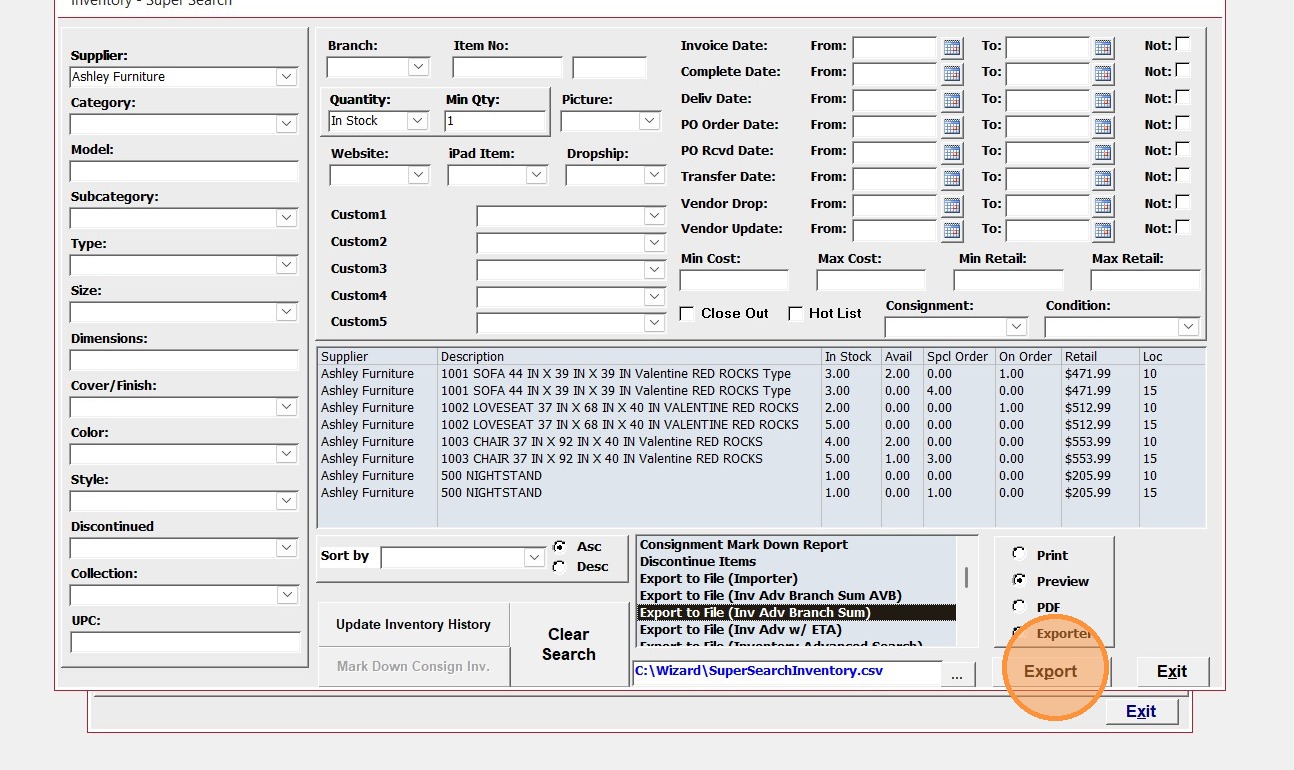
- Export current 'Instock' items with pricing
- Update Vendor pricing
- Replace 'Instock' item prices with exported values.
1. First step is to export current vendor in stock inventory
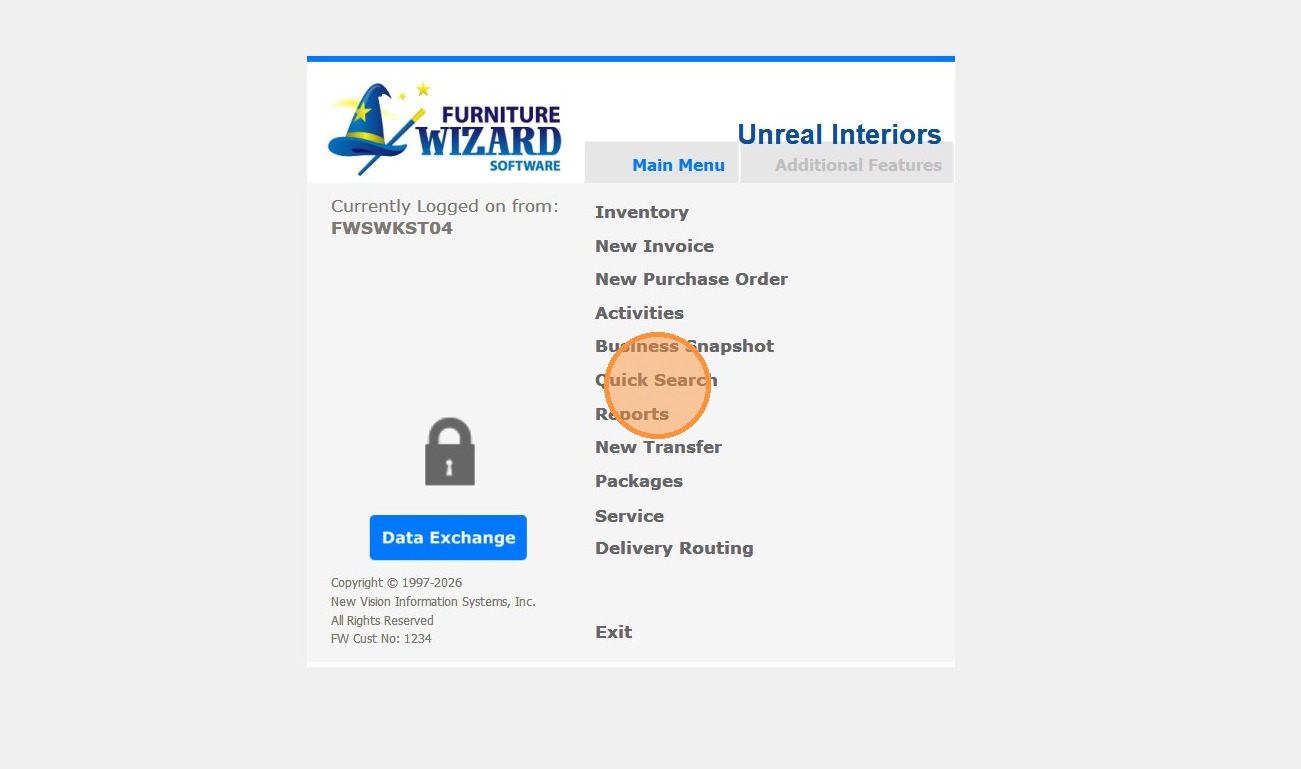
2. Select the Supplier, Enter Quantity "In Stock" then Min Qty: 1
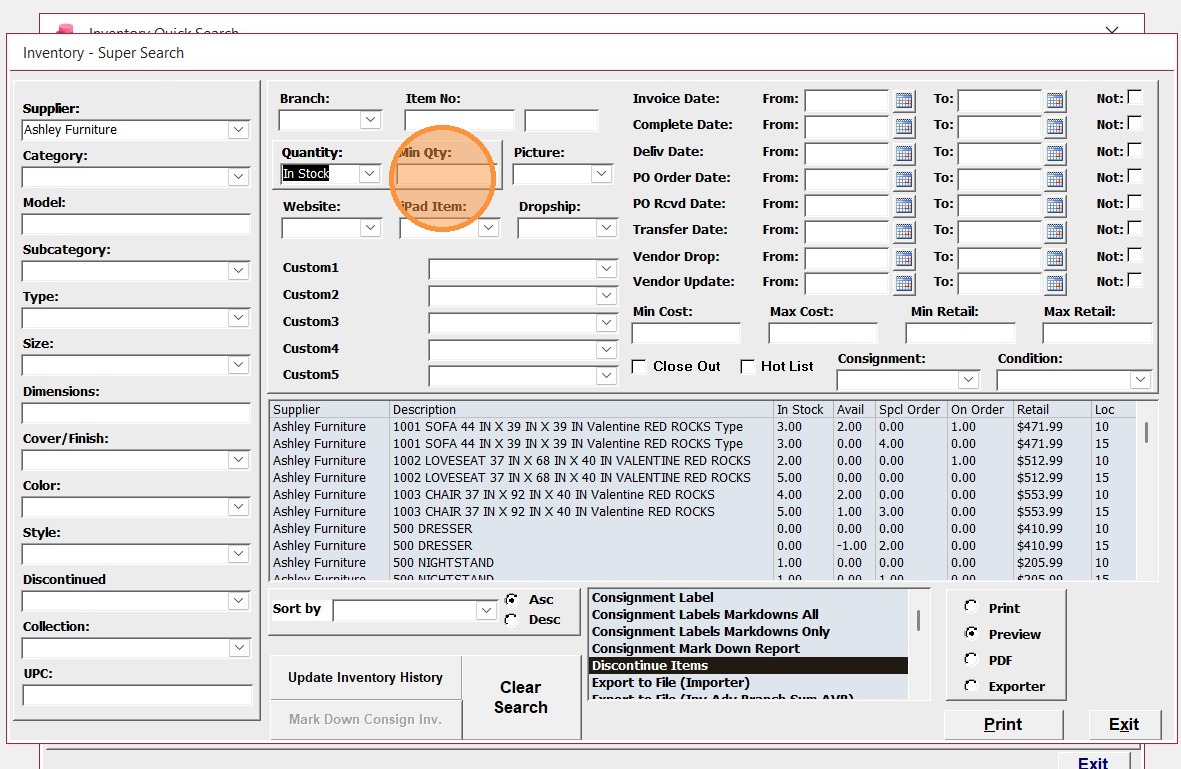
3. Click "Export to File (Inv Adv Branch Sum)"
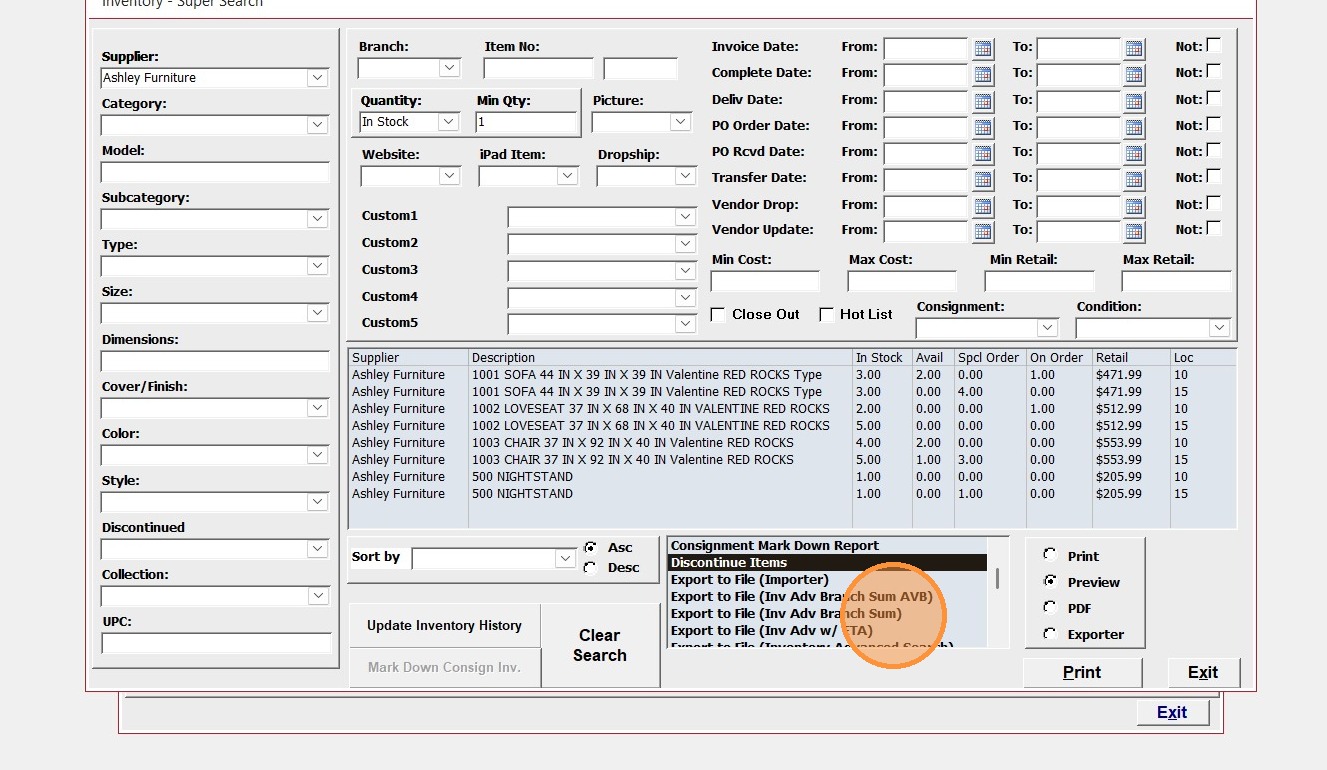
4. Click "Export"
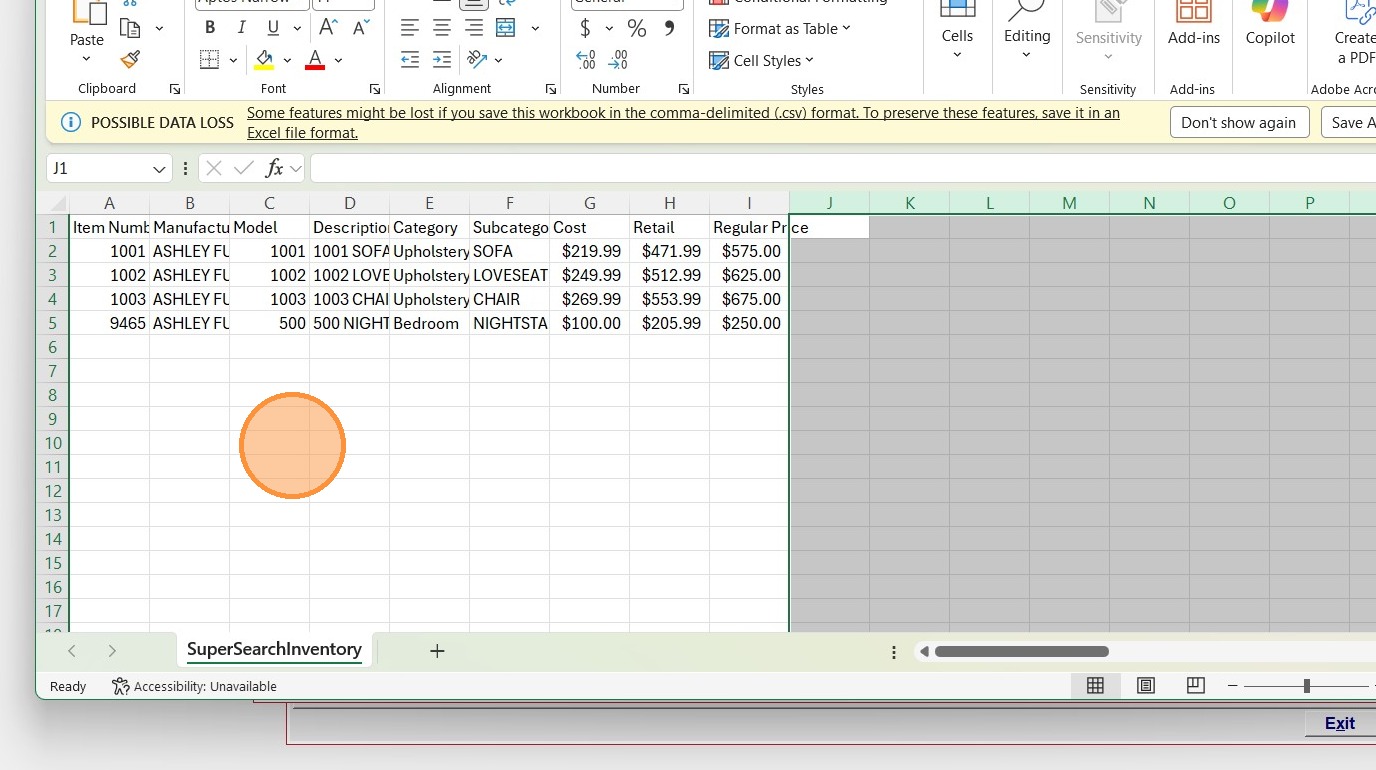
5. Delete extra columns. Keep Item Number, Manufacturer, Model, Description, Category, Subcategory, Cost, Retail, Regular Price.
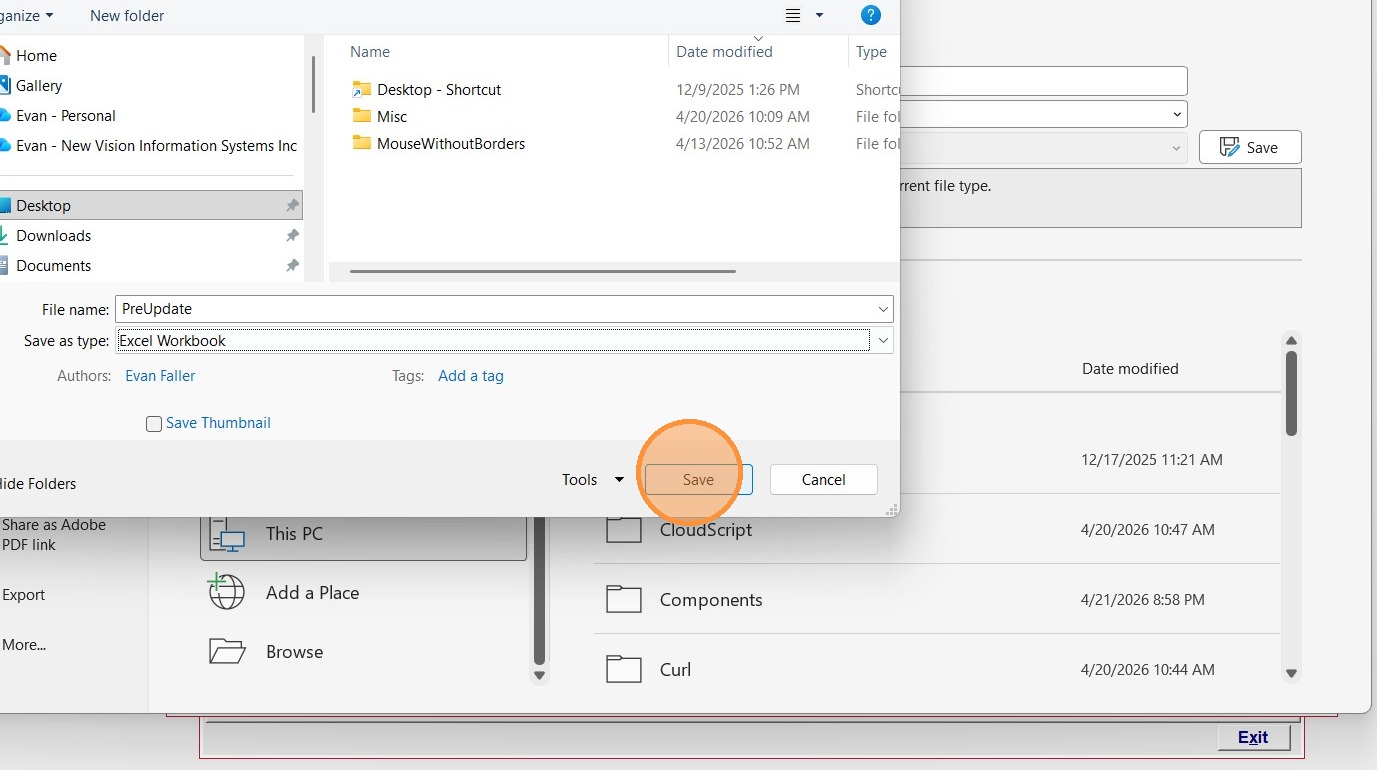
6. Name the file and save as an Excel file type
7. Second step is to go and adjust the vendor pricing. Select the supplier Click "Edit"
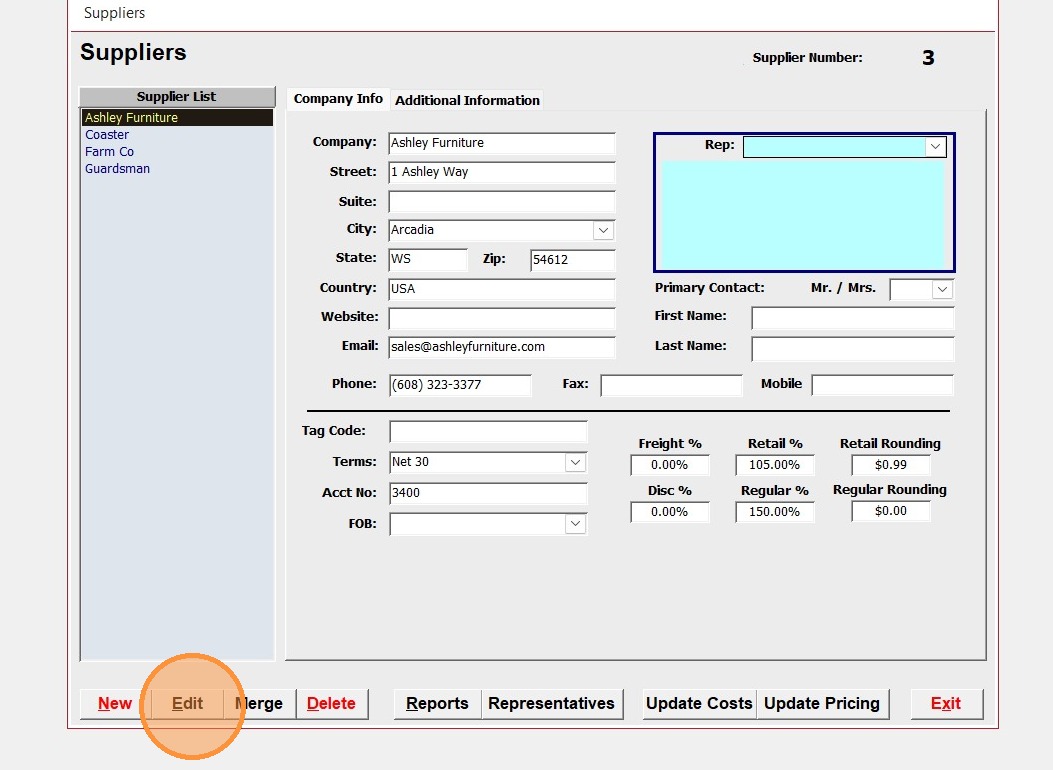
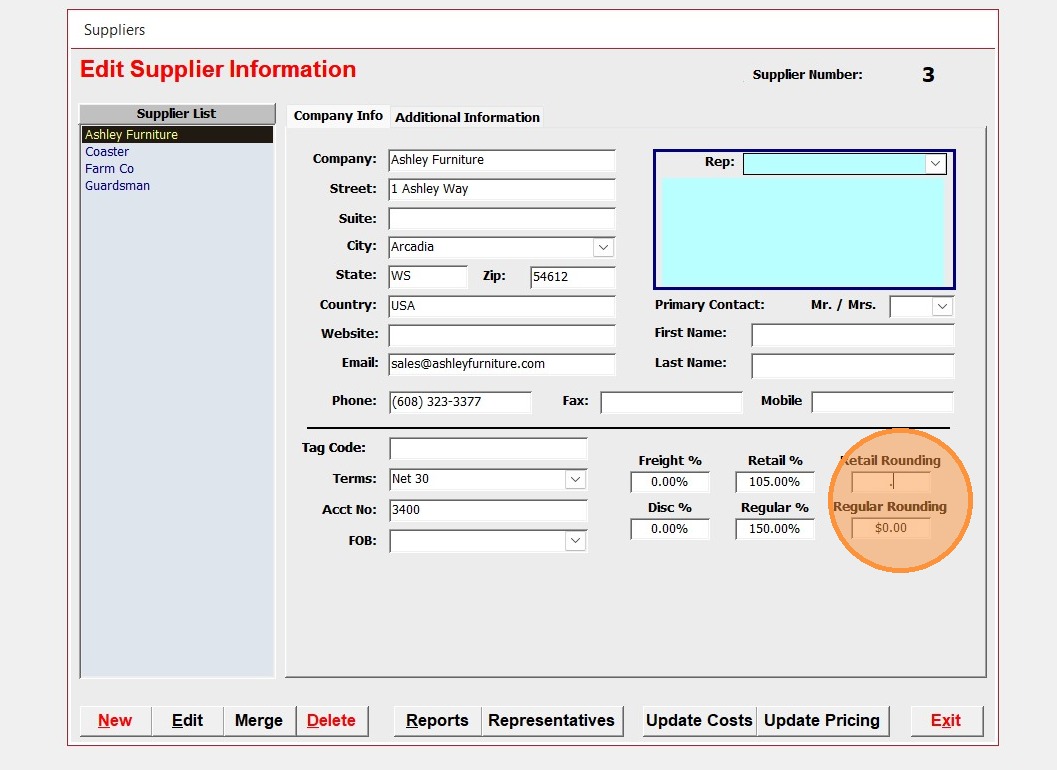
8. Click "Retail Rounding"
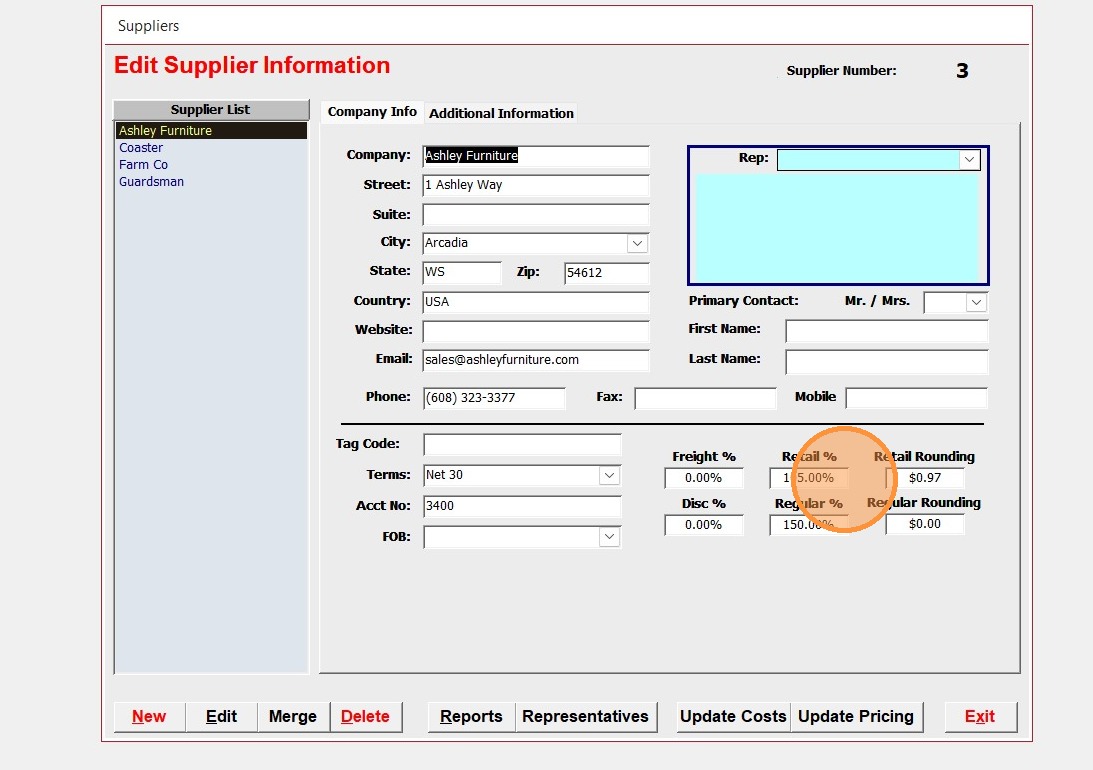
9. Click "Retail %"
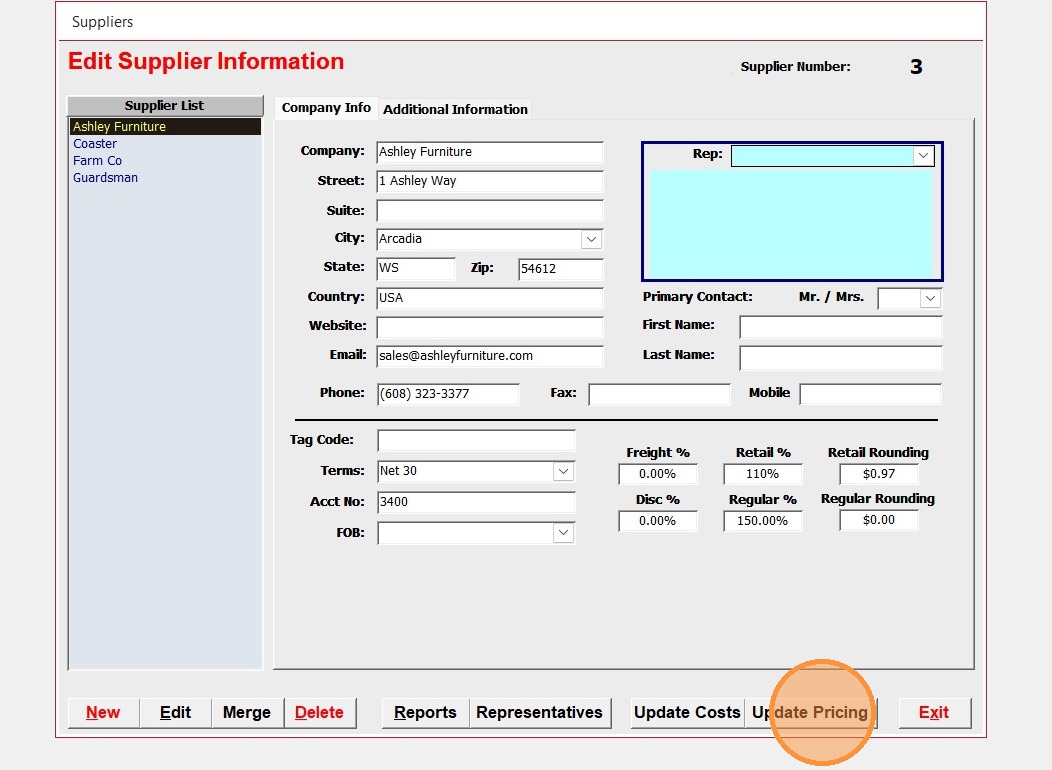
10. Click "Update Pricing"
11. Click "Yes"
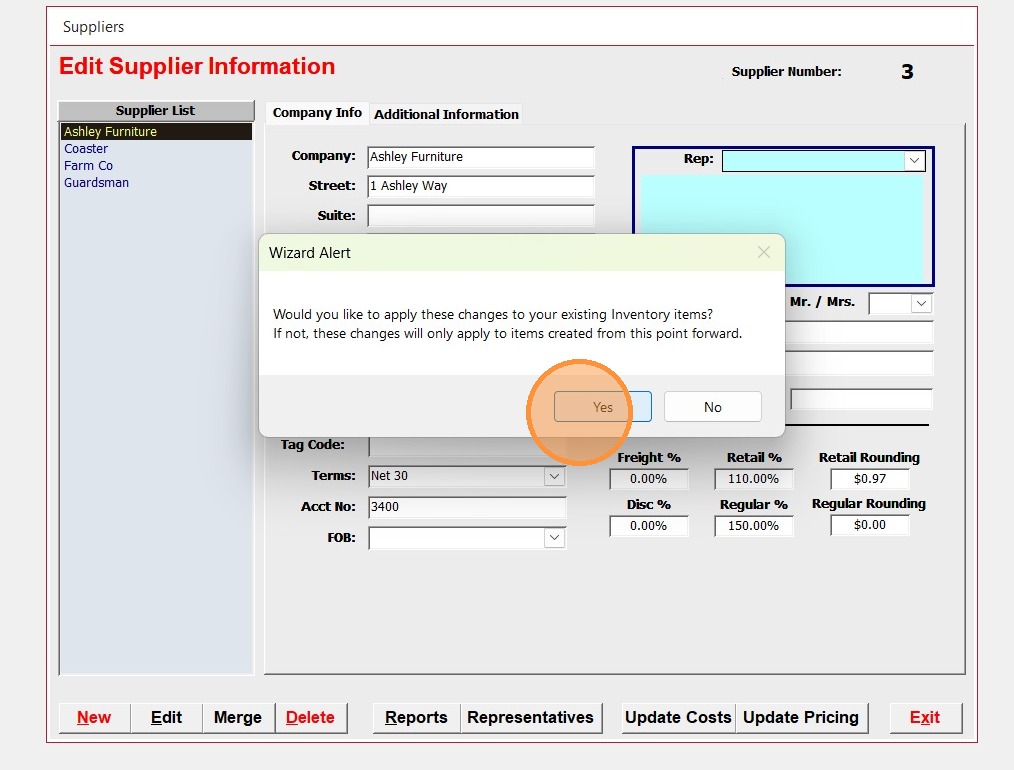
12. Click "Yes"
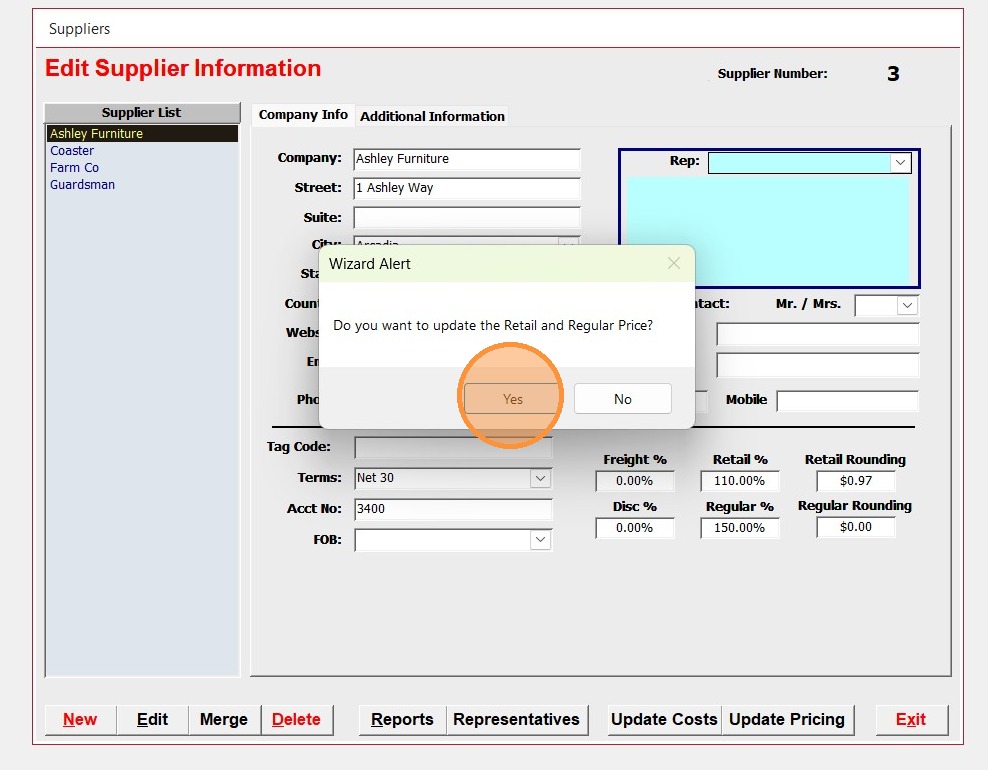
13. Click "OK"
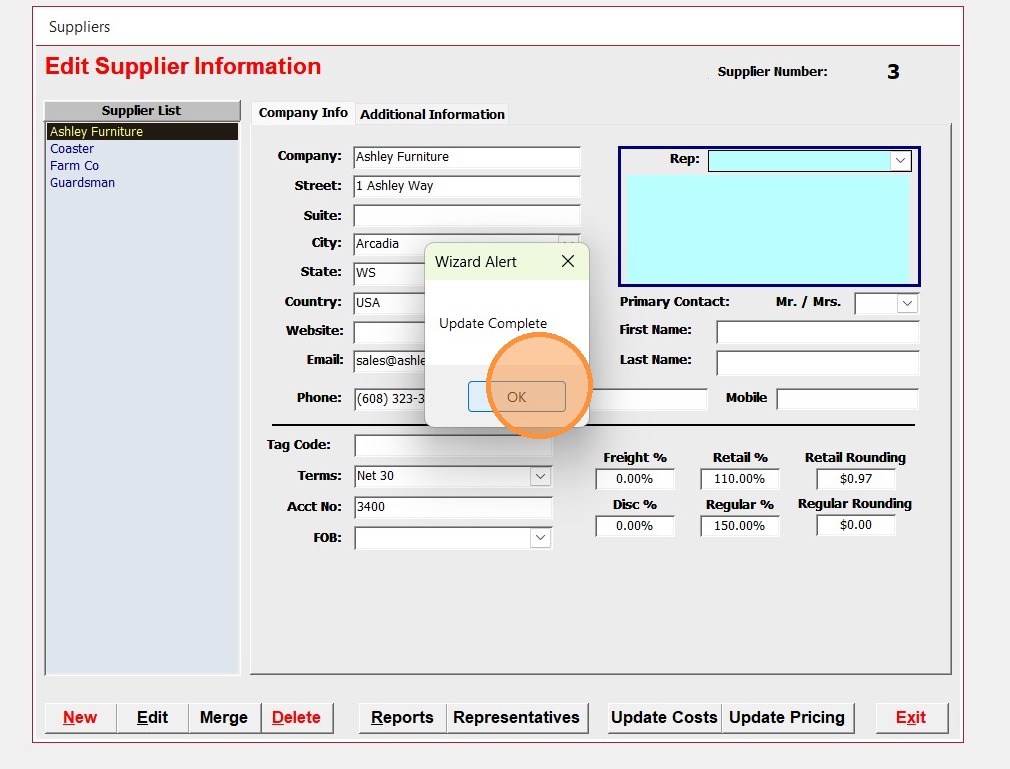
14. Third step is to put back the item pricing on stock items that we exported in step one. Click "Preferences"
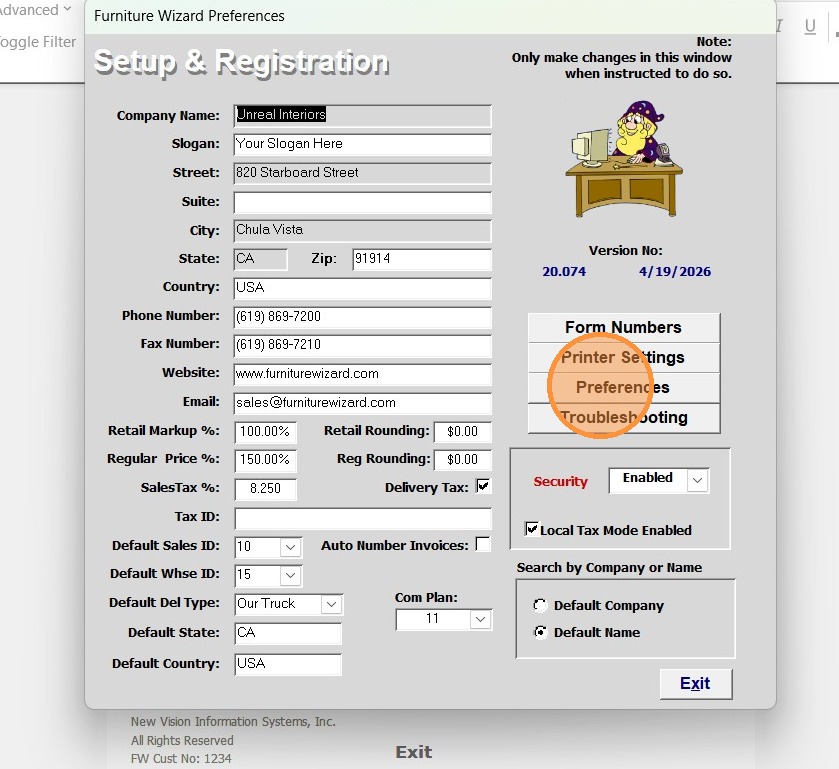
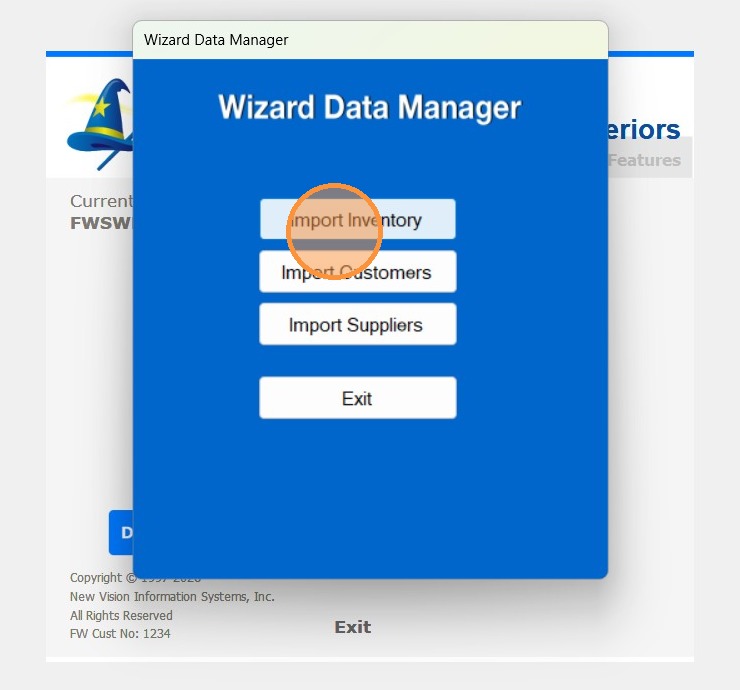
15. Click "Import Inventory"
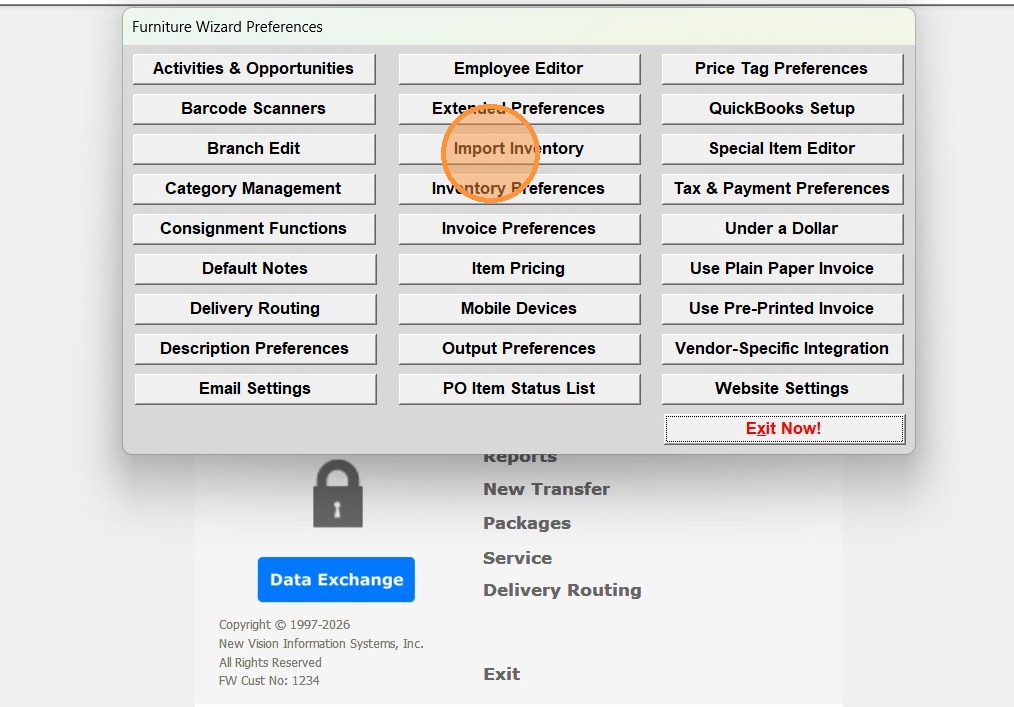
16. Click "Import Inventory"
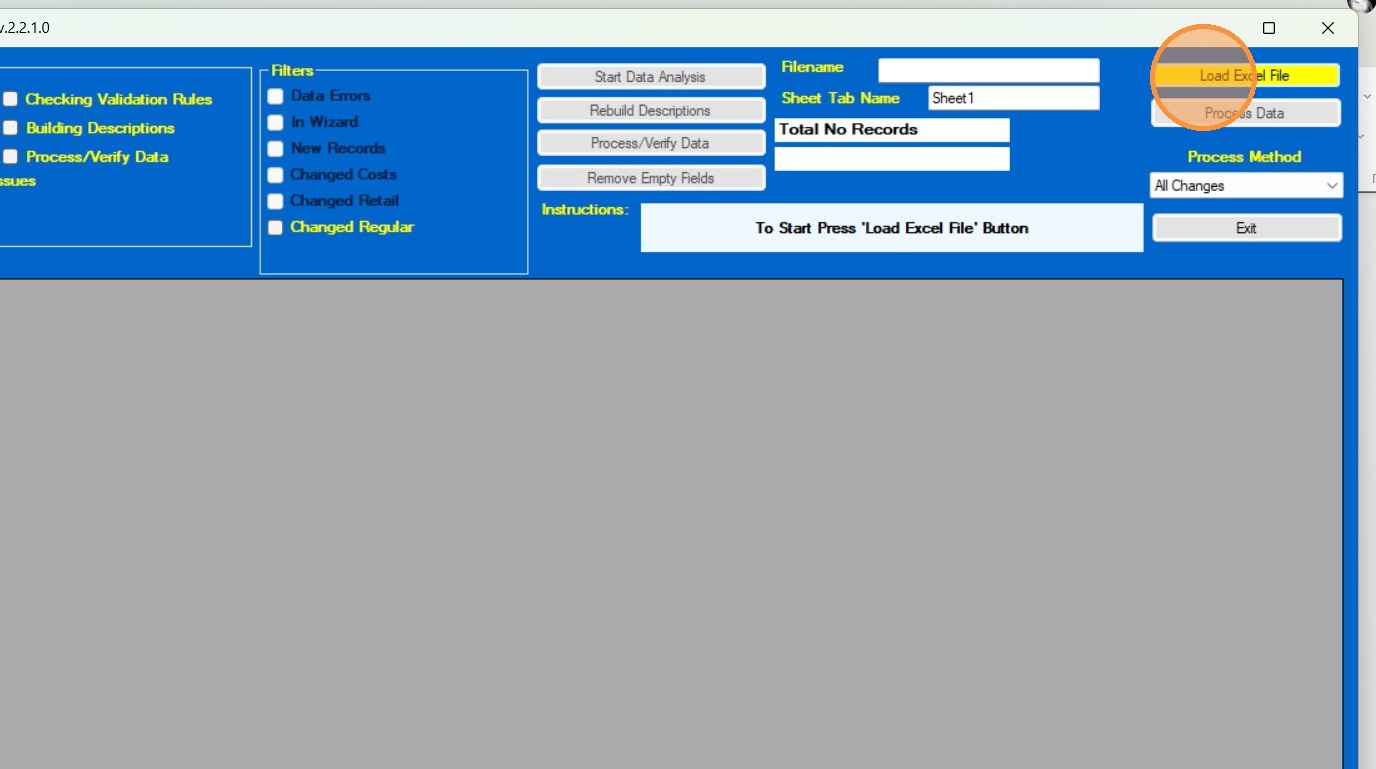
17. Click "Load Excel File"
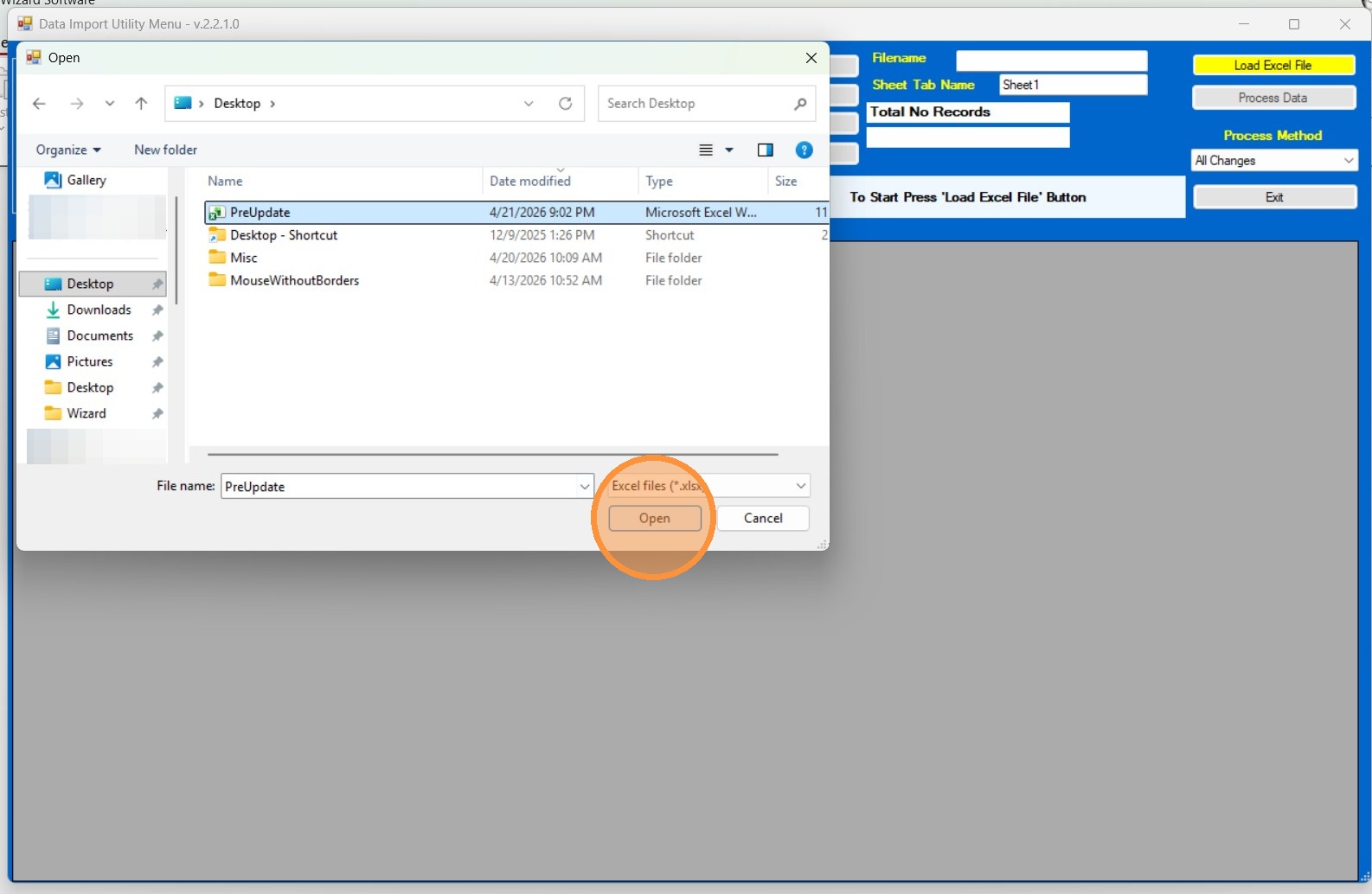
18. Click "Open"
19. Click "
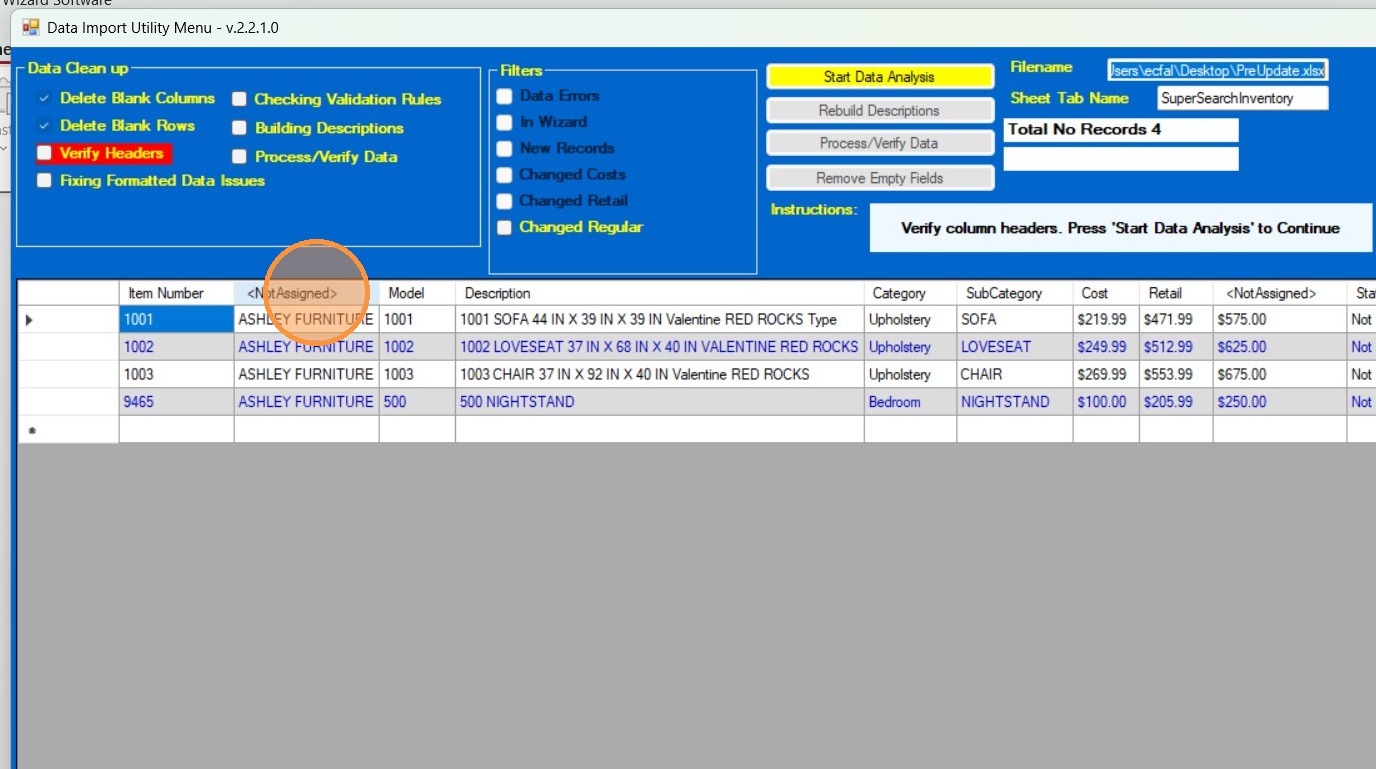
20. Click "Vendor Name"
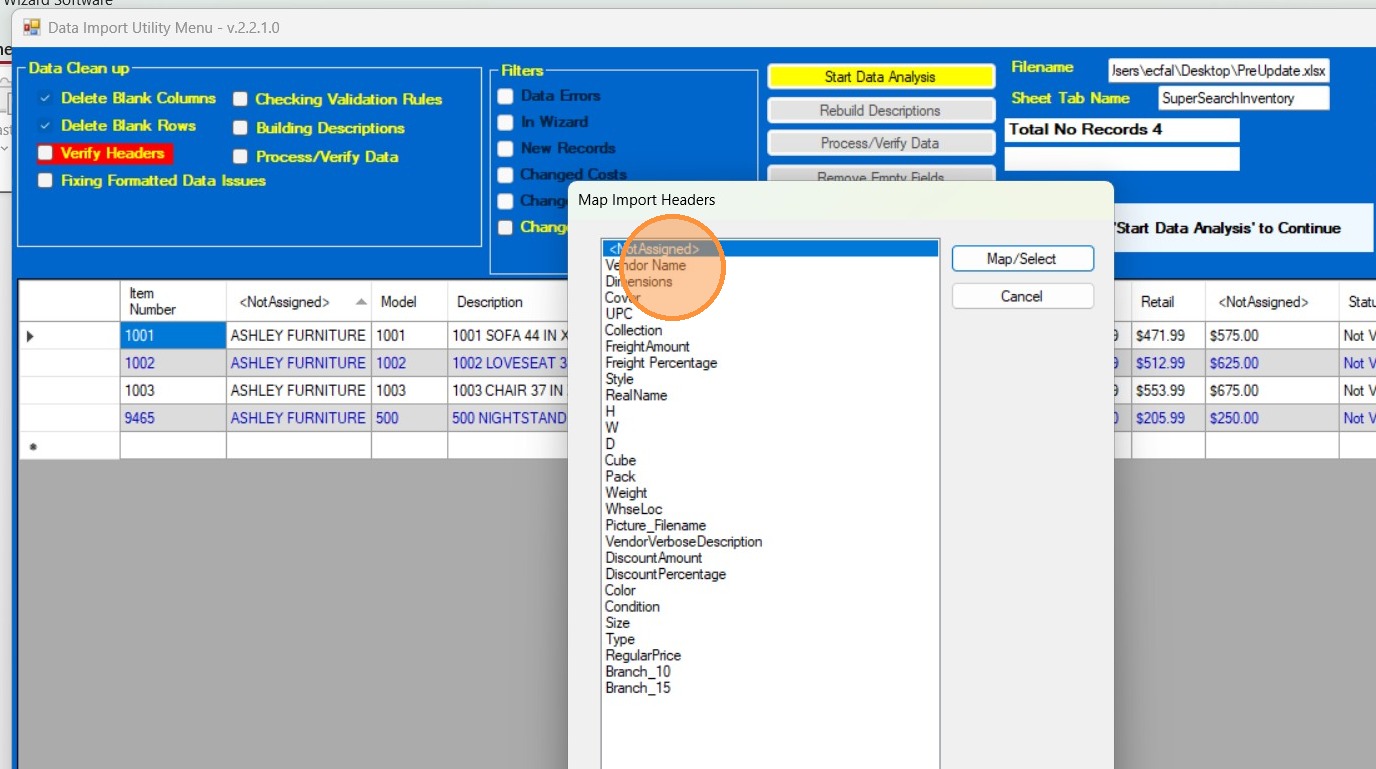
21. Click "Map/Select"
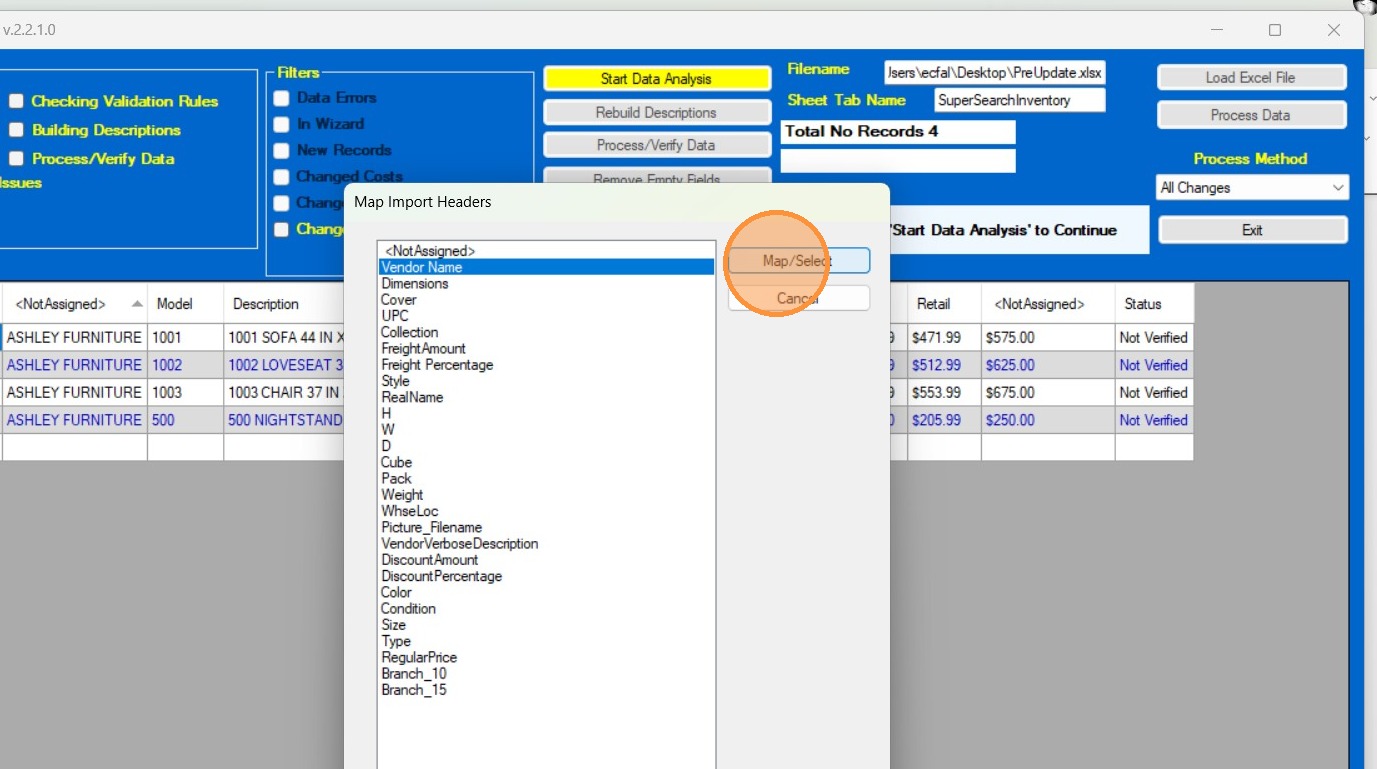
22. Click "
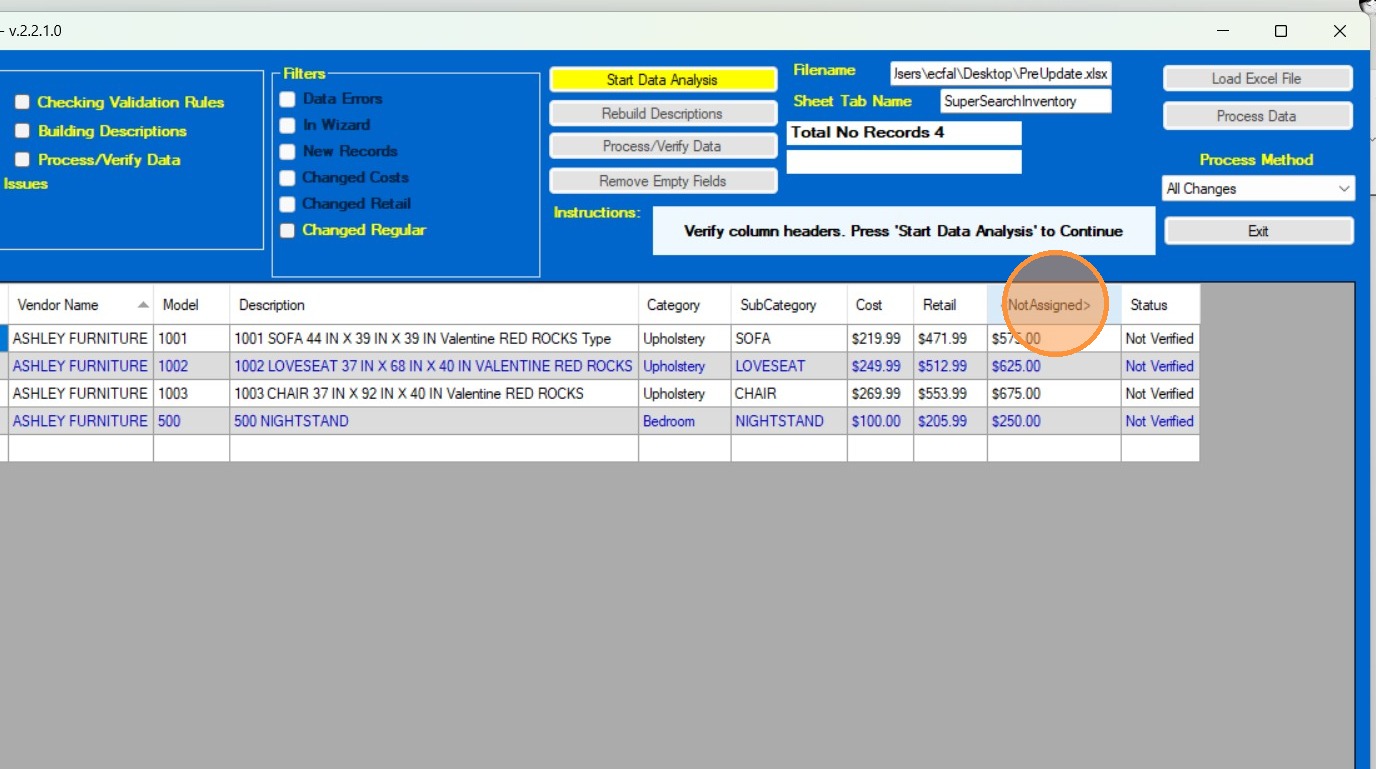
23. Select the Column for RegularPrice. Click "Map/Select"
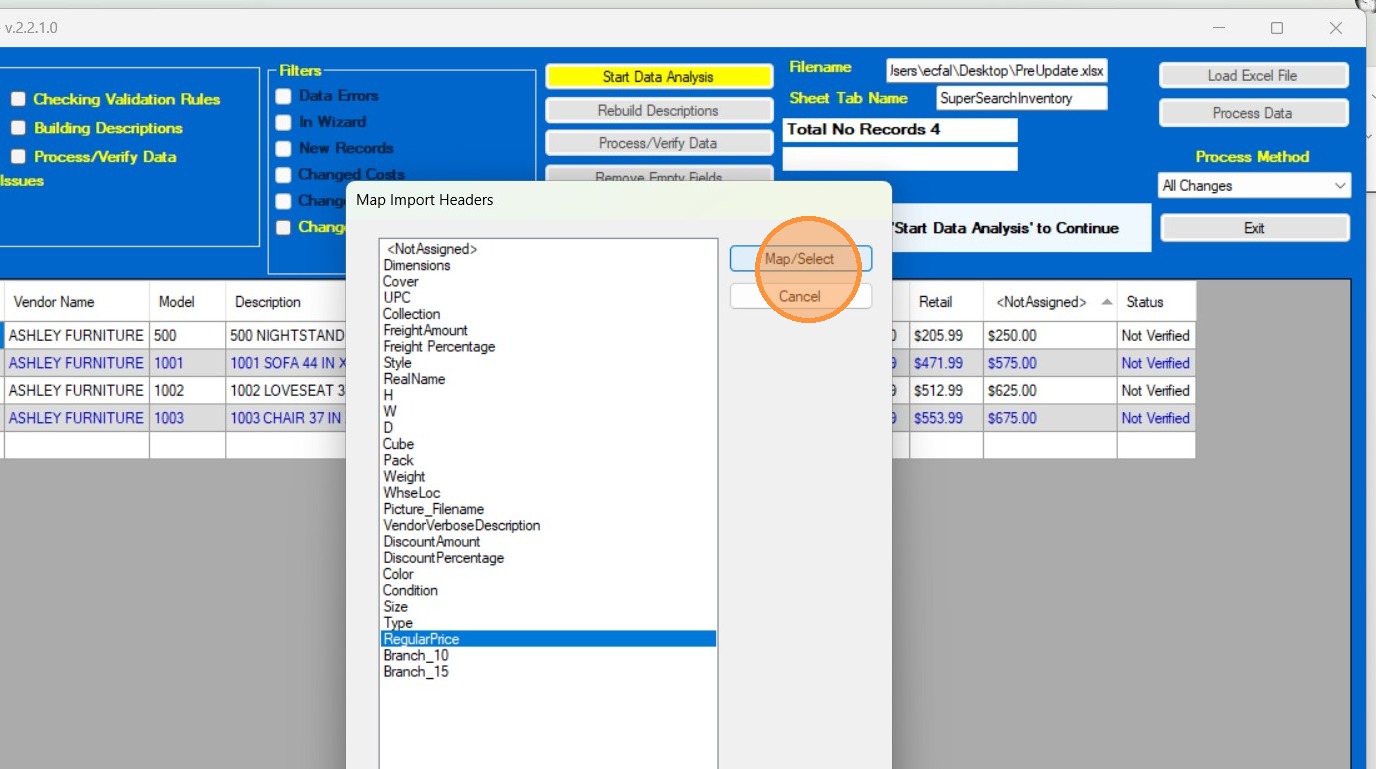
24. Click "Start Data Analysis"
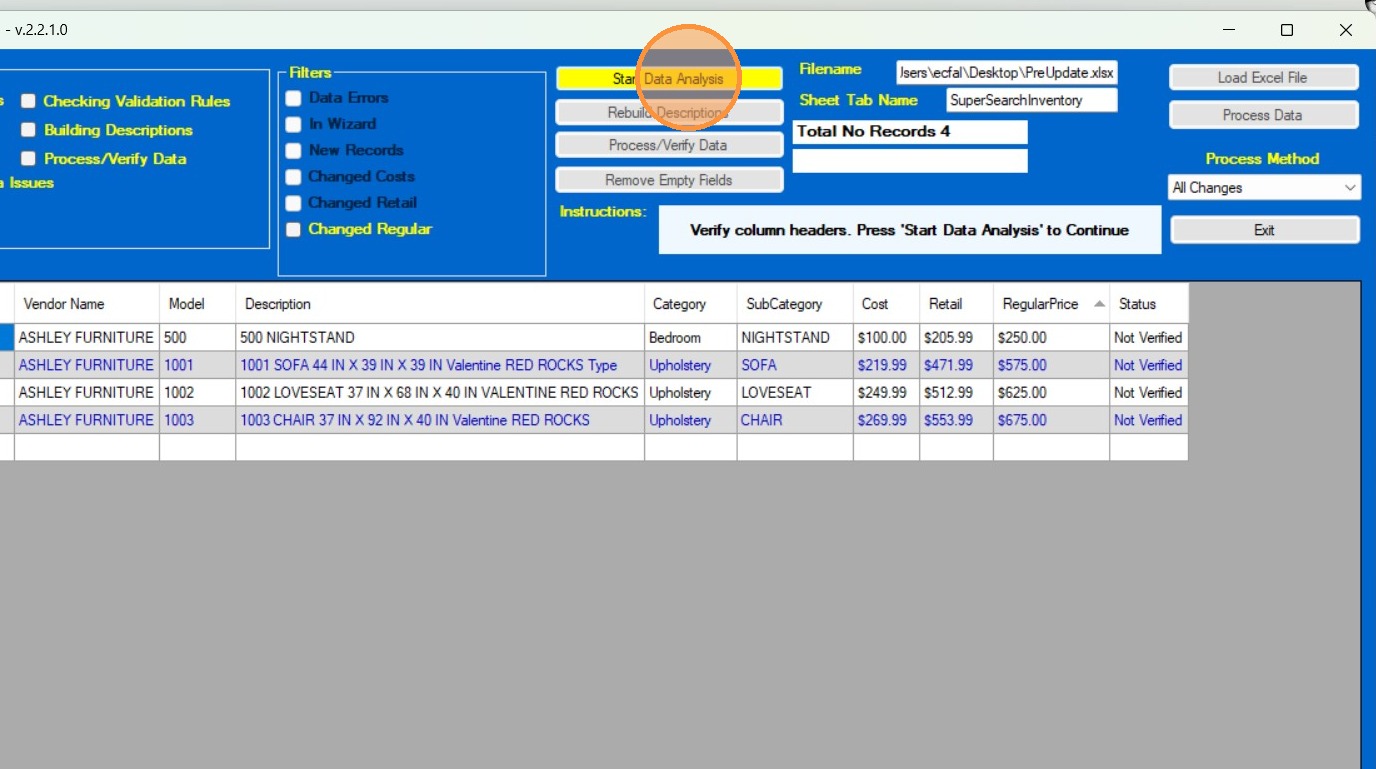
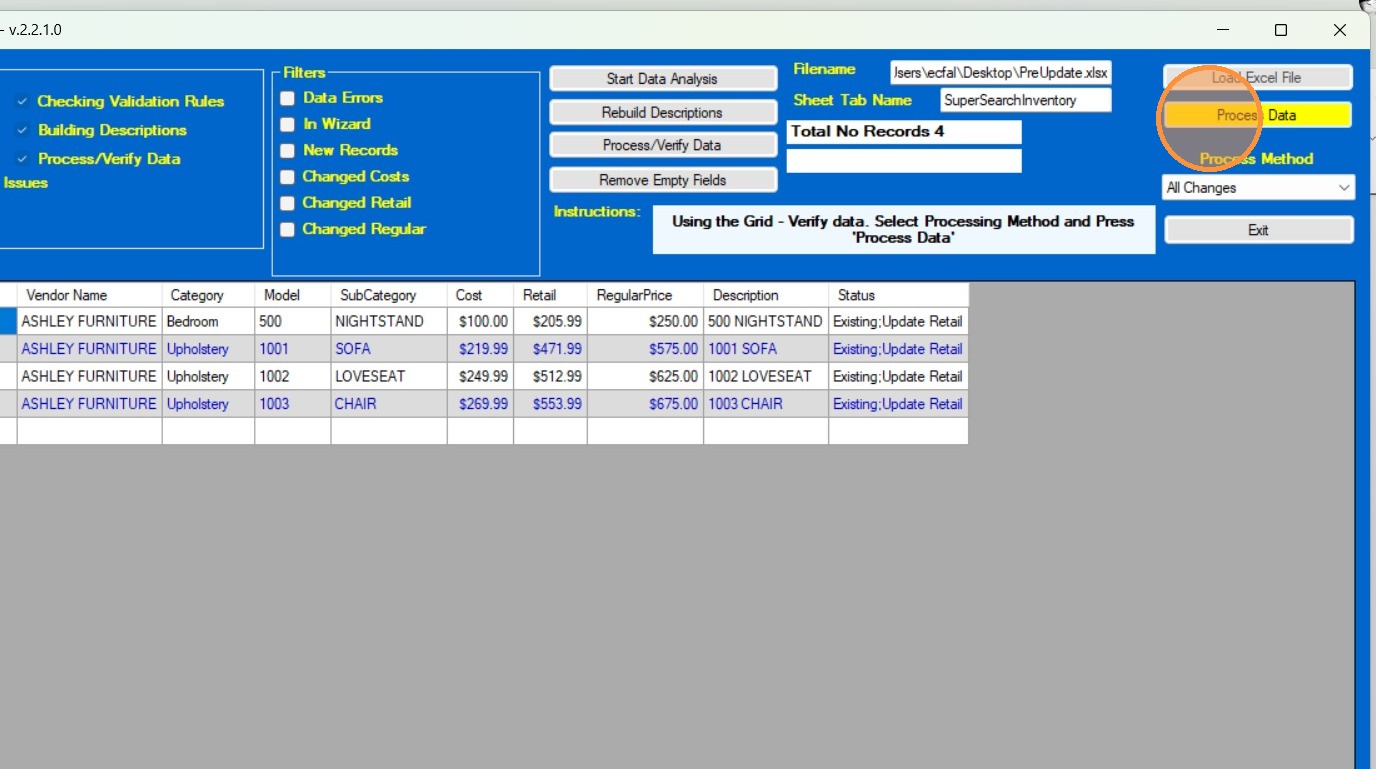
25. The system will display "Existing: Update Retail" for the items in your sheet. Click "Process Data"
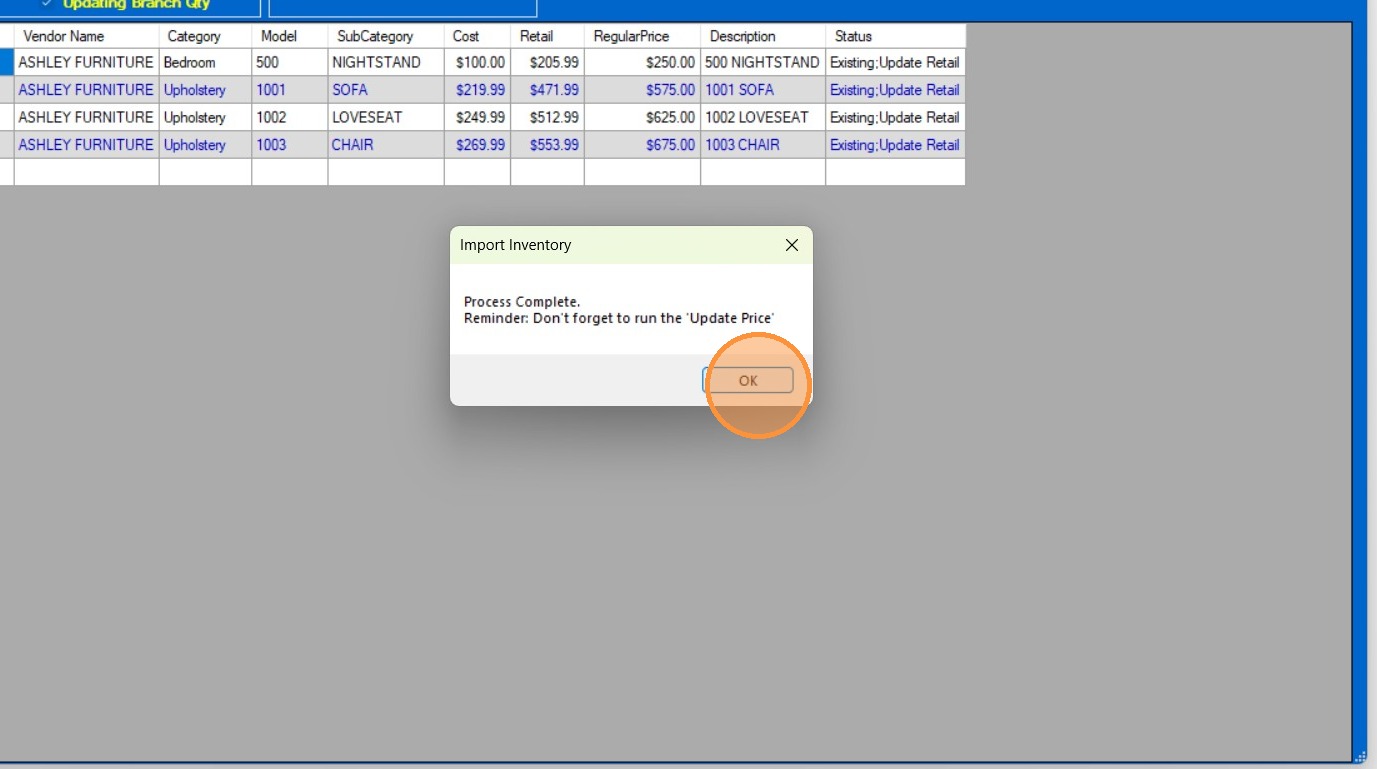
26. A prompt will appear reminding to run the "Update Price" function. You will ignore this step but you have to click "OK" to exit the form.
27. Click "Exit"
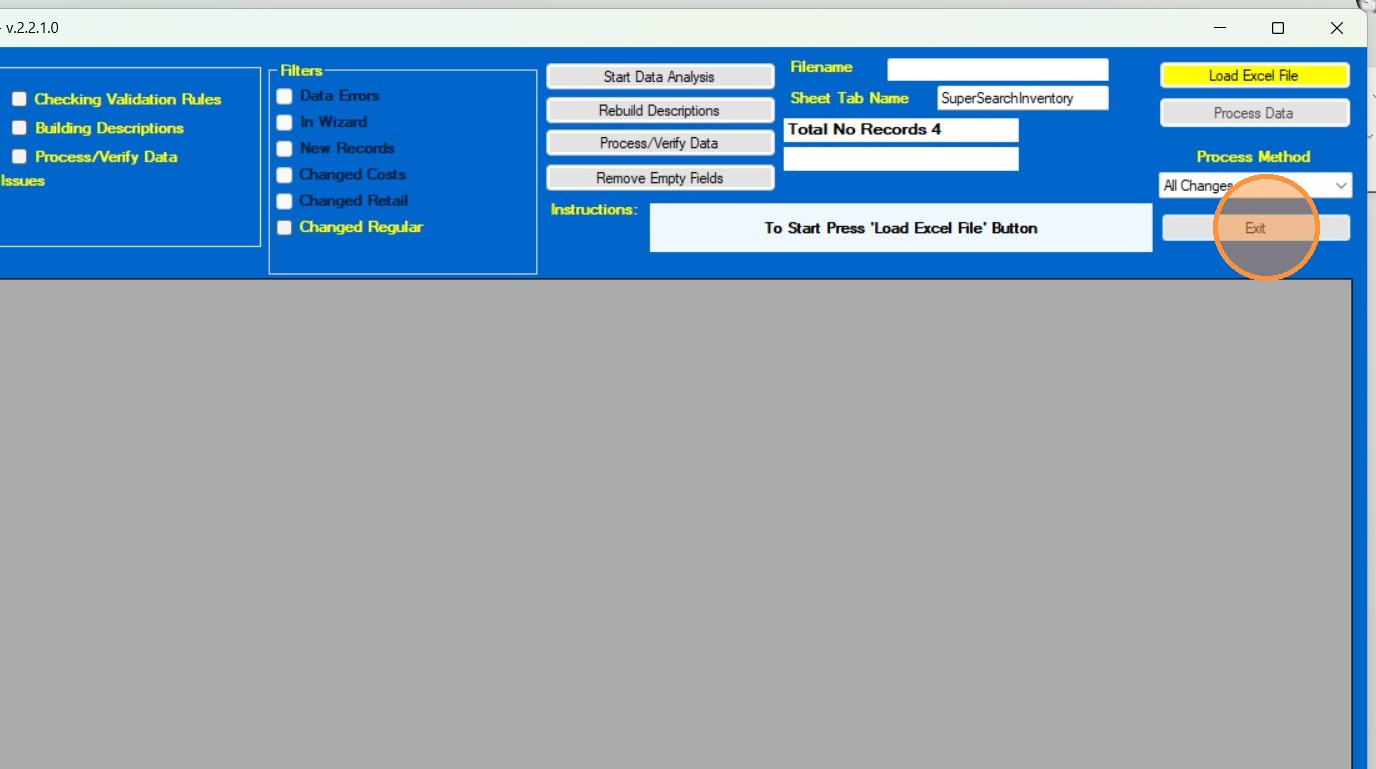
28. Click "Exit"