Update Package Costs/Prices Function
A function to update one or all packages' costs and retail prices with current costs and prices. This will update the package costs and prices to reflect the current costs and prices that have been updated for the individual inventory items. Once on the Package Maintenance screen, click the ‘Update Costs/Prices’ button and follow the prompts to update costs and prices for packages.
.png?sv=2026-02-06&spr=https&st=2026-10-19T00%3A57%3A25Z&se=2026-10-19T01%3A08%3A25Z&sr=c&sp=r&sig=vof31K5VjuKl%2BtjbVgc%2FnVHef4nWBLAEXYSMkw%2Bb4fI%3D)
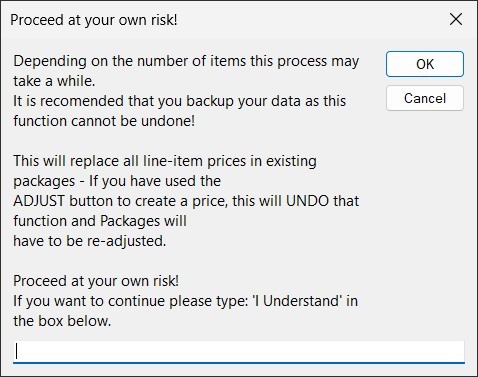
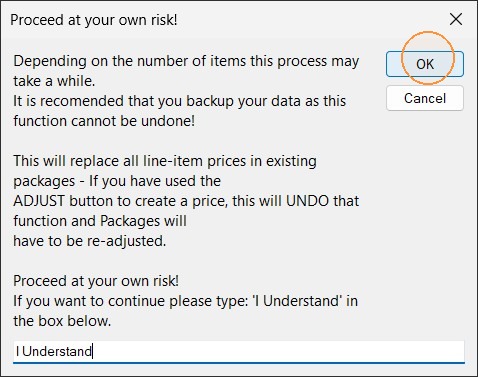
*Depending on the number of items this process may take a while. It is recommended that you back up your data, as this function cannot be undone.
*This will replace all line-item adjustments in existing packages. If you have used the ADJUST button to create a price, this will UNDO that function, and Packages will have readjusted.
Continue for the step-by-step guide
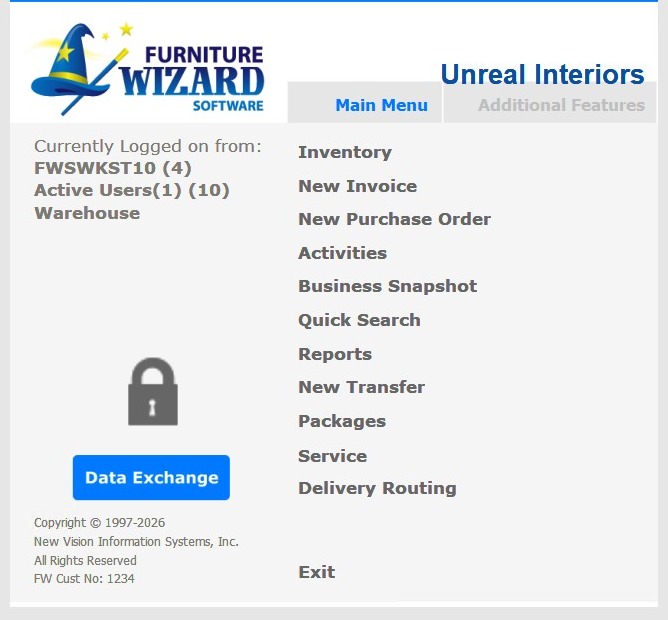
1. Start from the Main Menu of Furniture Wizard
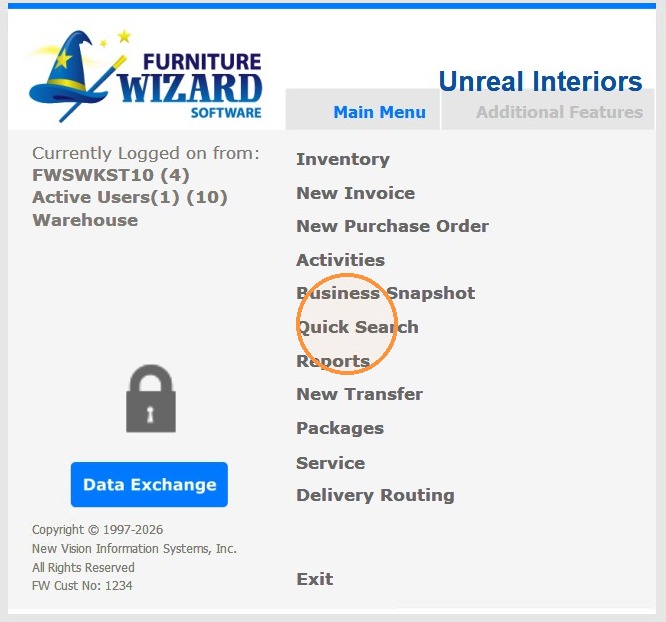
2. Select Quick Search
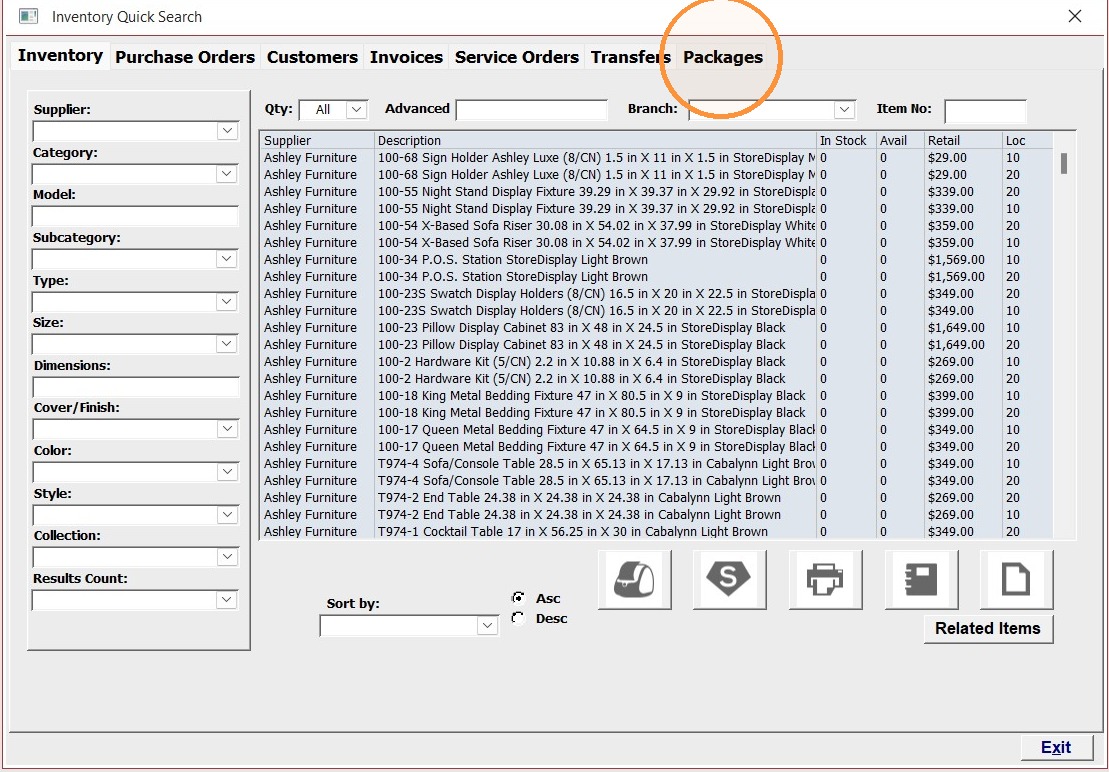
3. Select the Packages tab
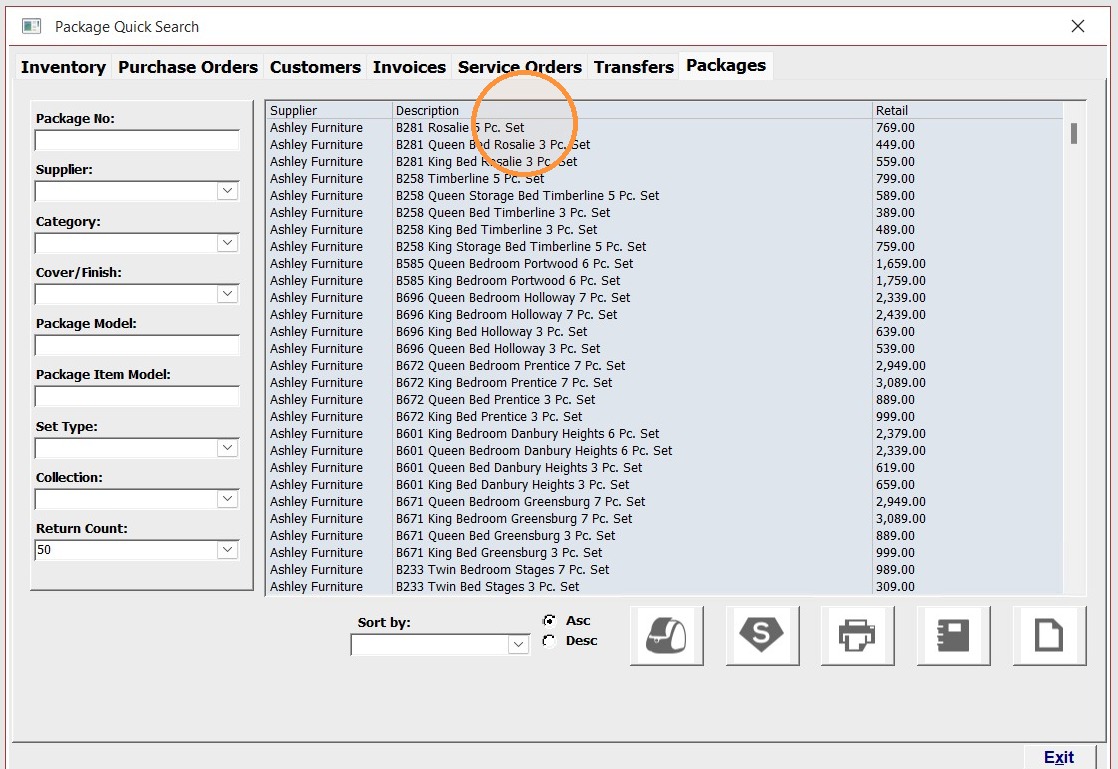
4. Select the Package you want to update
Alert: Verify that the Cost and Price are correct on the item
5. Double-click on the item
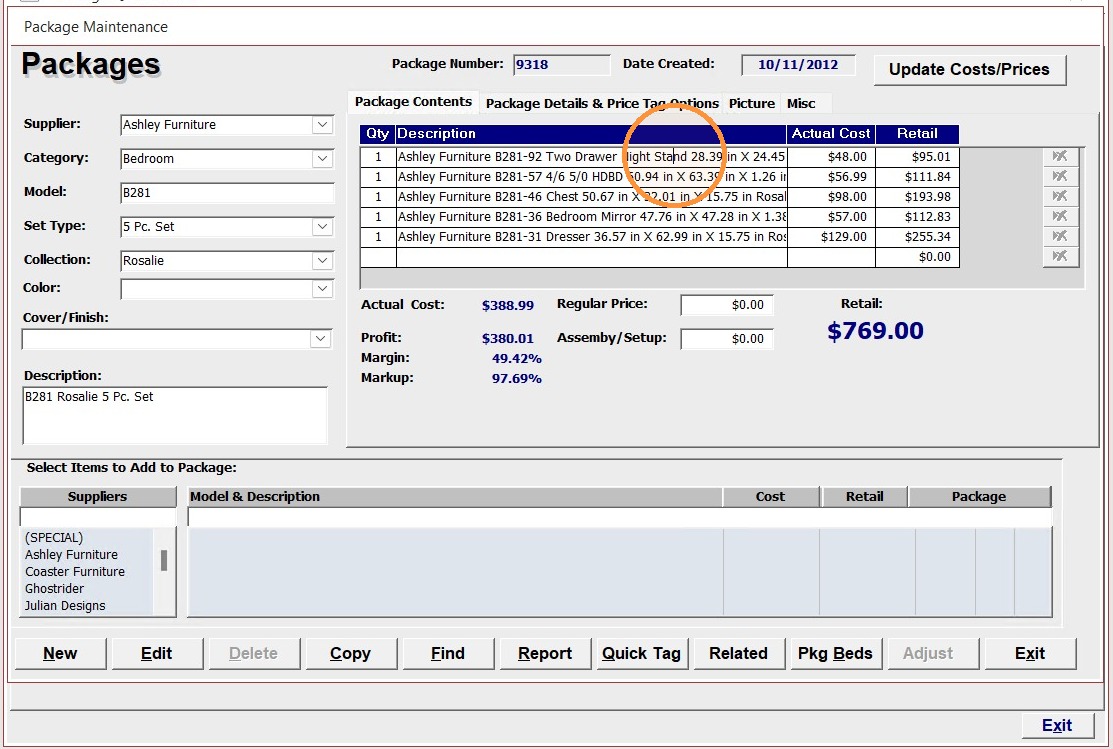
6. Select the Cost & Price tab
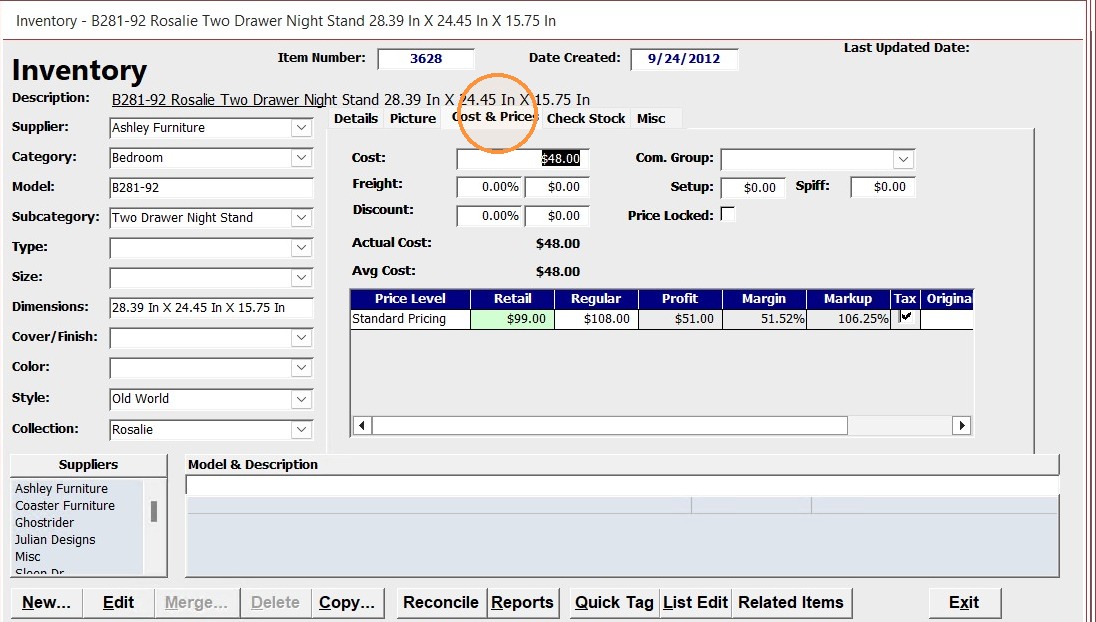
7. Verify the Cost & Price are what you want then click Exit
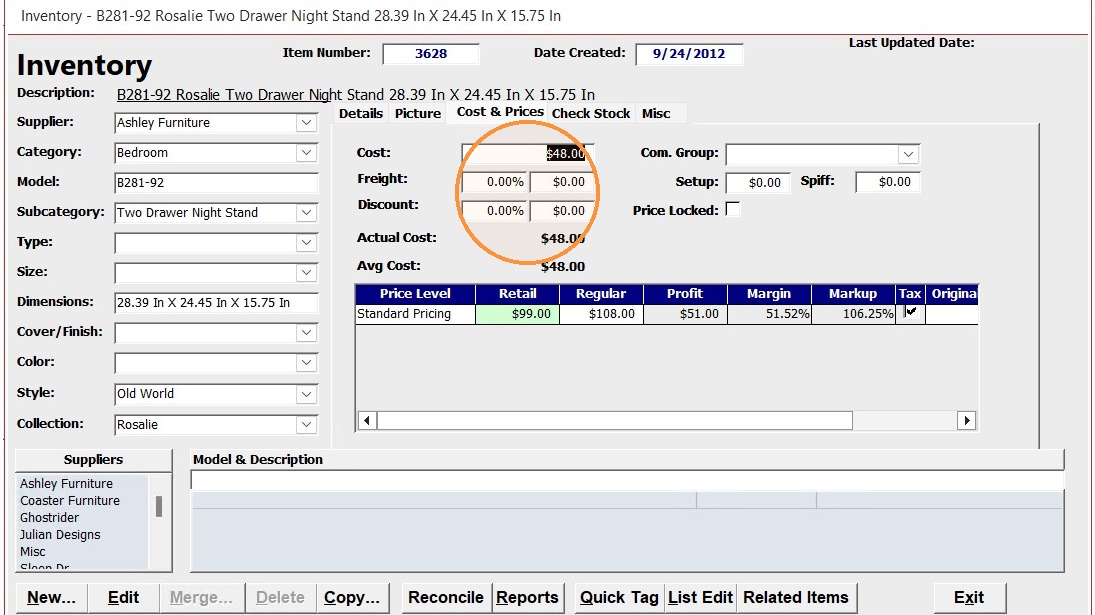
Alert: Repeat the steps for all the remaining items before continuing
8. Once all Cost & Price are verified click Update Cost/Price
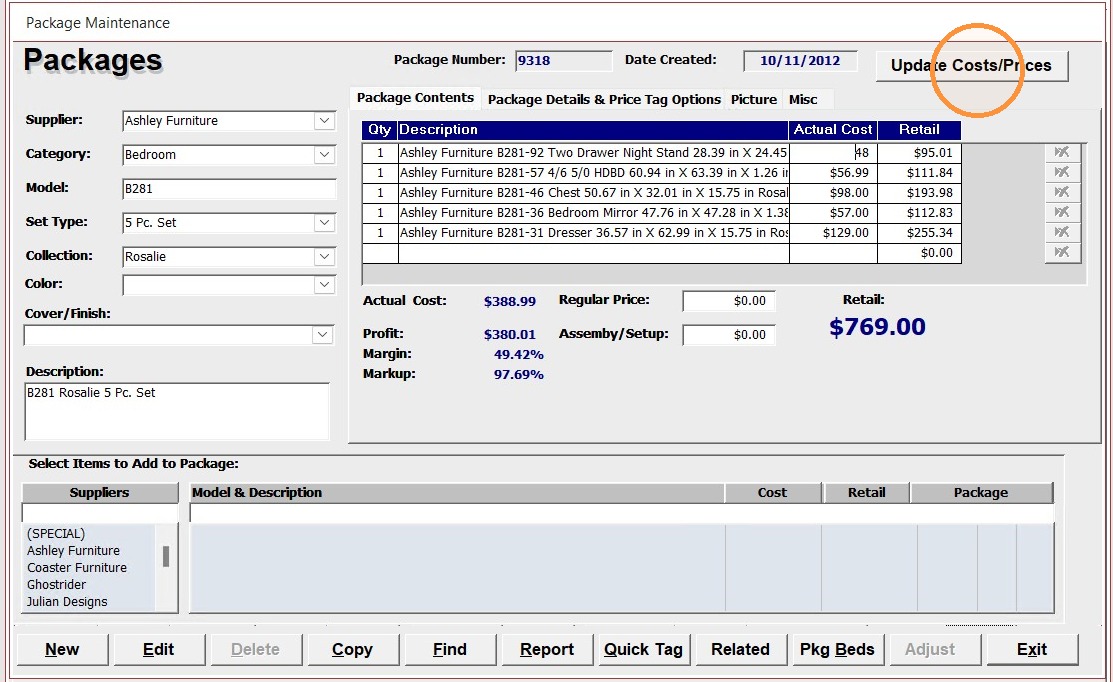
9. Read the following message to ensure you understand the changes
10. Type "I Understand" then click OK
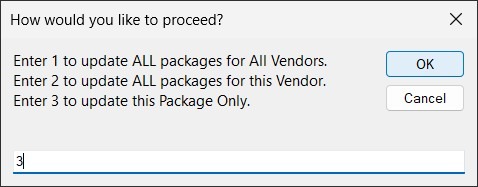
11. You will be prompted with the following message. Select the one that best matches what you need.
12. You will then be prompted for the type of Update again select the one that best fits your needs.
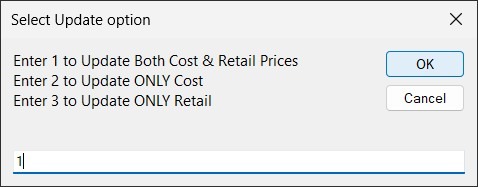
Alert: This will be the final prompt before the changes are made.
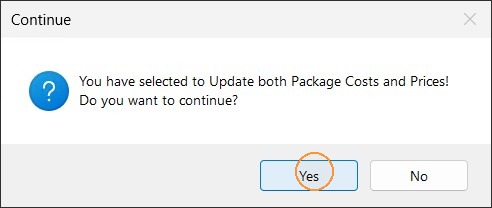
13. Confirm or stop if unsure. The update is now complete.
Update just the Retail Price of the package
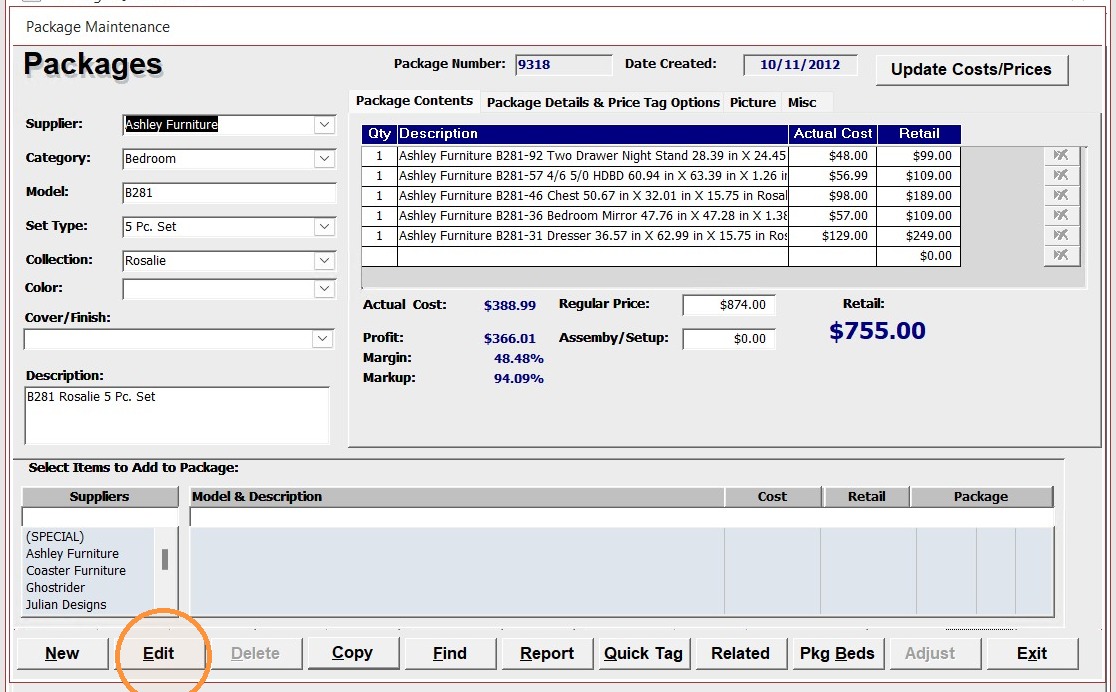
14. From the package screen select Edit. This will Enable the adjust button.
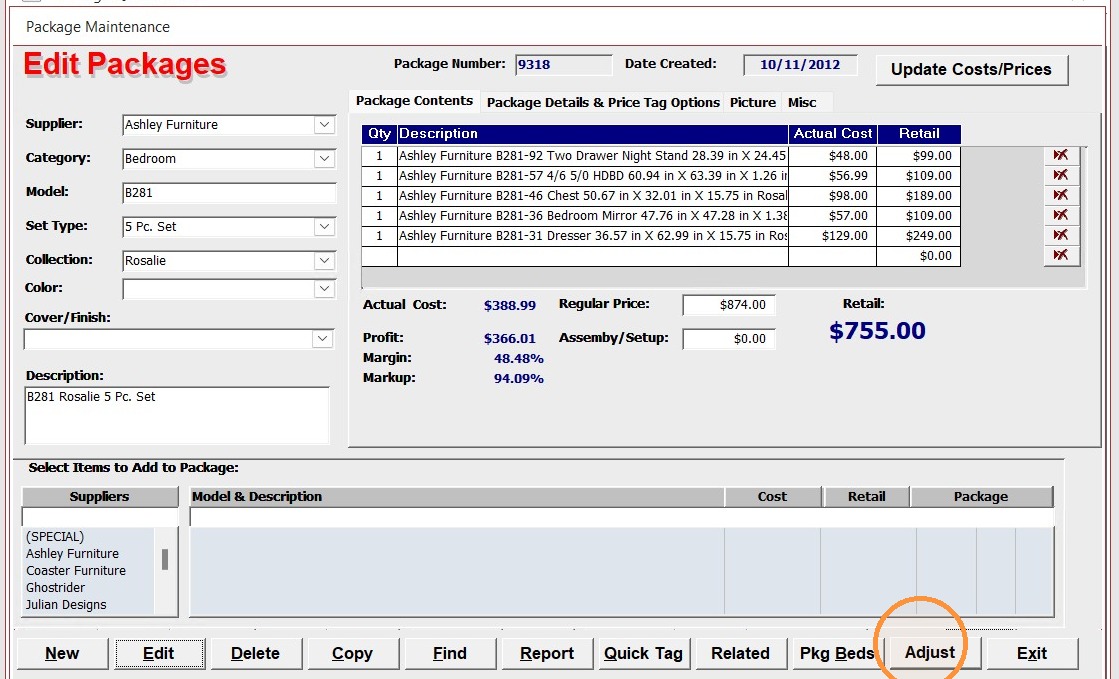
15. Select the Adjust button
16. Read the following message and enter in the new Retail Price. Then select OK
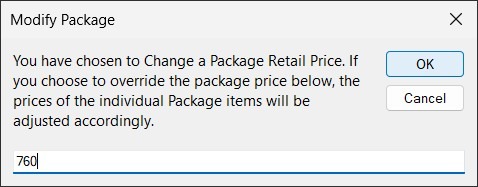
Alert: This will split the pricing among the items in the package accordingly
17. The Update process is now complete